 ArmsFolio
Help & User Manual
Contents
- Welcome to ArmsFolio
- Getting Started
- Adding Firearms
- The Vault
- The Gun Detail Page
- Range Log
- Cleaning Reminders and Reminders
- Ammo Inventory
- Reloading Inventory
- Memberships
- Wishlist
- FFL Dealer Vault
- Dispositions
- Analytics
- Reports
- QR Tags
- Range Roulette
- Deals
- Security
- Backup & Restore and CSV
- Vault+
- Tools Menu and Settings
- Troubleshooting
- FAQ
- Privacy Summary
Welcome to ArmsFolio
ArmsFolio is a private, local-first inventory app for gun owners. It keeps your firearms, optics, suppressors, accessories, ammo, paperwork and range history in one tidy place: on your phone or in your browser, not in somebody else's cloud.
This manual walks you through every part of the app in plain language. You don't have to read it front to back. Jump to the chapter you need, try things out, and come back when you're curious about something.
What ArmsFolio is good at:
- Keeping a complete, photo-rich record of everything you own, with serial numbers, values, receipts and permits.
- Producing insurance-ready reports and PDFs in a couple of taps.
- Tracking range trips, round counts, cleaning, ammo and reloading components.
- Holding club and organization memberships, a wishlist, and copies of your dealers' FFL licenses.
- Doing all of this privately, with optional on-device encryption.
What ArmsFolio is not: it isn't a dealer bound book, an ATF form or legal advice. It's your personal record. Always follow the laws that apply where you live and when you buy, sell or transfer.
Back to top ↑Getting Started
Install ArmsFolio
You can use ArmsFolio two ways. Both are the same app with the same features.
On Android (Google Play). Open the Play Store, search for ArmsFolio (published by SlavGuns), and tap Install. The app's Play listing is com.slavguns.armsfolio.
In any browser (web app). Go to https://app.armsfolio.com on your phone, tablet or computer. It works in current versions of Chrome, Edge, Safari and Firefox, and it keeps working offline after the first visit.
To put the web app on your home screen so it opens like a regular app:
- Chrome or Edge (Android, Windows, Mac): use the Install ArmsFolio prompt, or the browser menu's Install app option.
- Safari (iPhone or iPad): tap Share, then Add to Home Screen.
The First-Run Tour
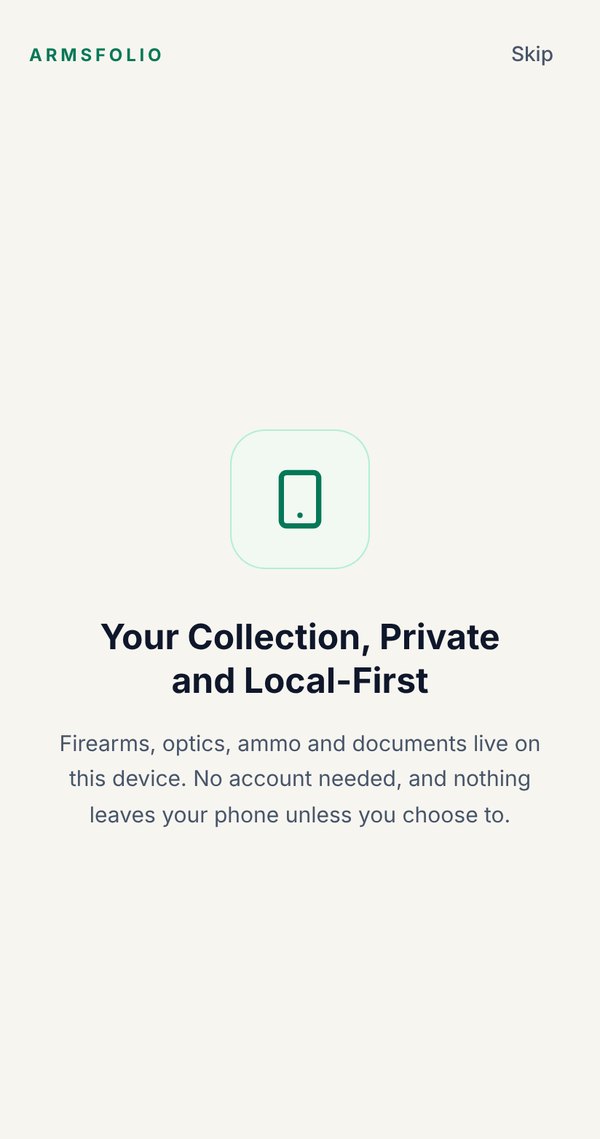
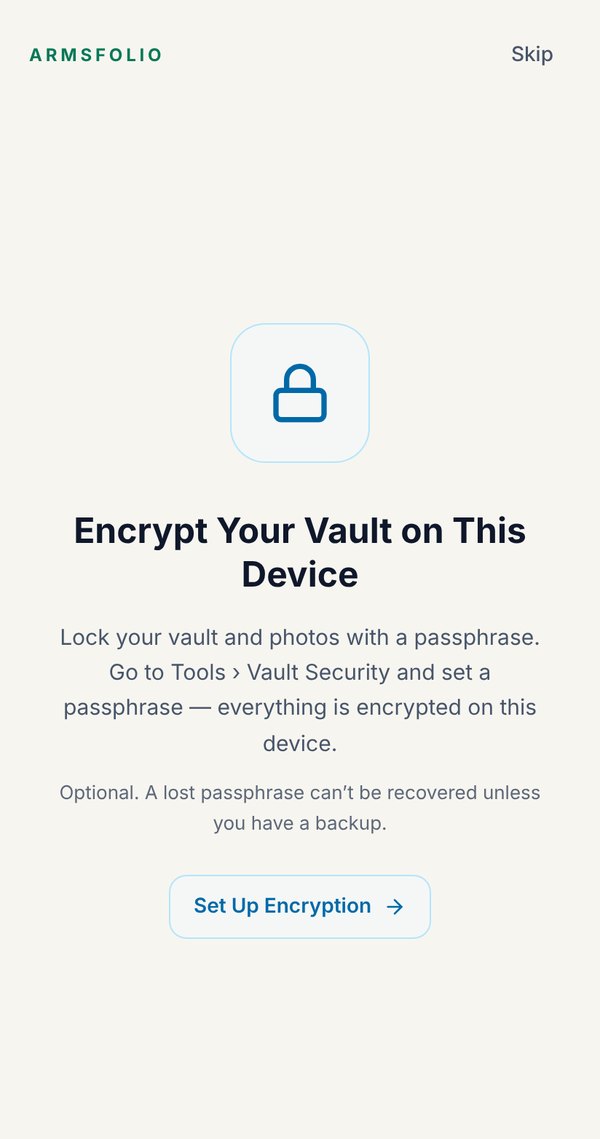
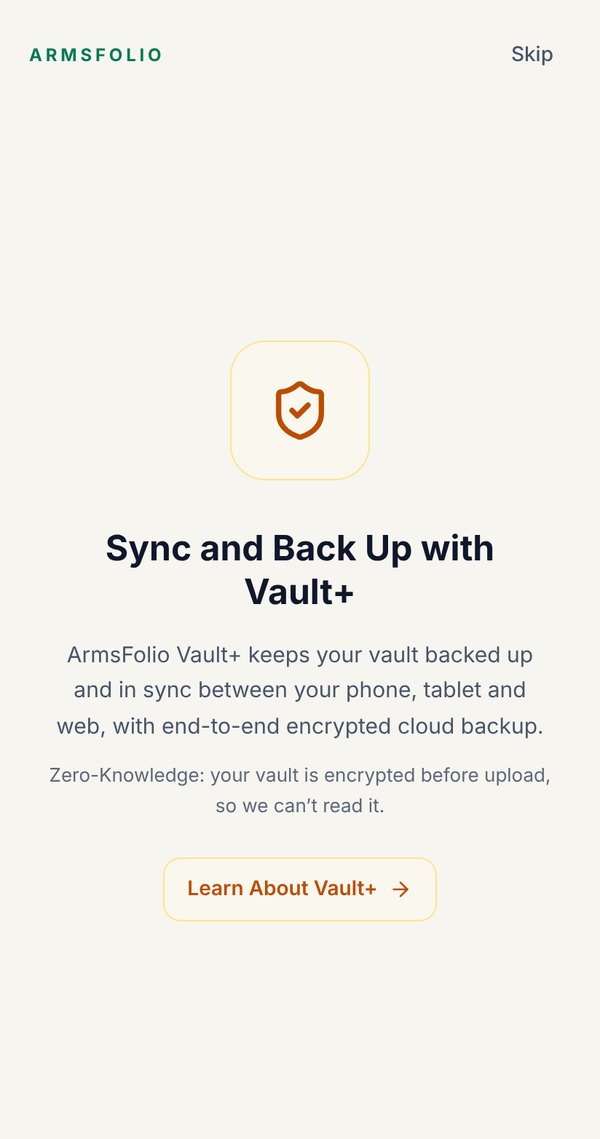
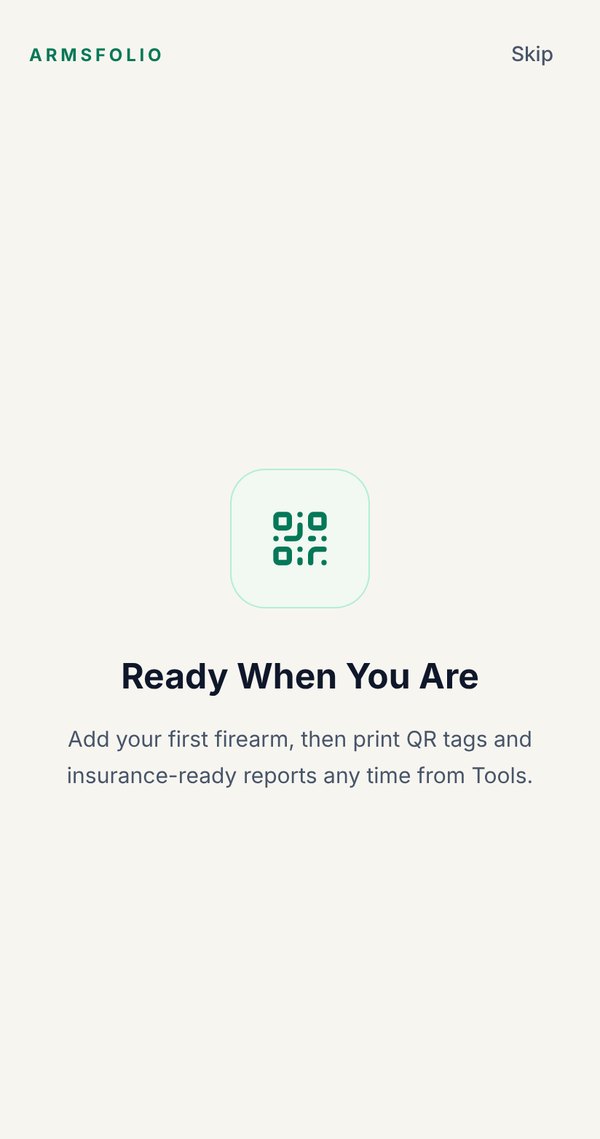
The first time you open ArmsFolio with an empty vault, a short four-screen tour introduces the basics. Swipe or tap Next to move along, or tap Skip at any time.
- Your Collection, Private and Local-First. Everything lives on your device. No account is needed.
- Encrypt Your Vault. An optional step. Encryption is off until you turn it on; Encrypt Your Vault takes you straight to Vault Security, or tap Next to skip it.
- Sync and Back Up with Vault+. Introduces the optional encrypted cloud backup. Learn About Vault+ opens the Vault+ screen.
- Ready When You Are. Tap Add Your First Firearm to start.
Finding Your Way Around
On a phone, the bar along the bottom has five buttons:
- Vault: your inventory, plus the Disposed and Analytics tabs at the top.
- Deals: partner discount codes and daily deals matched to your vault.
- Add (the big green plus): log a new item.
- Wishlist: gear you want.
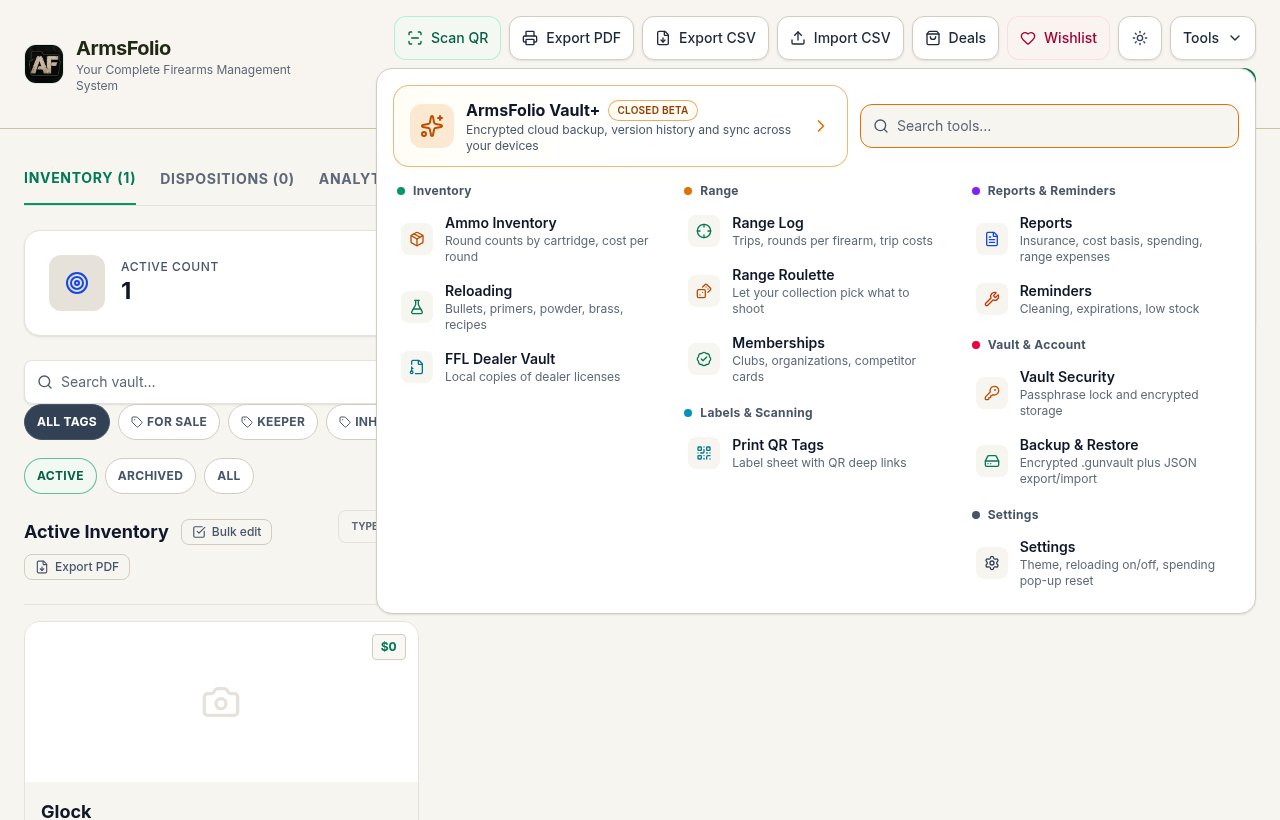
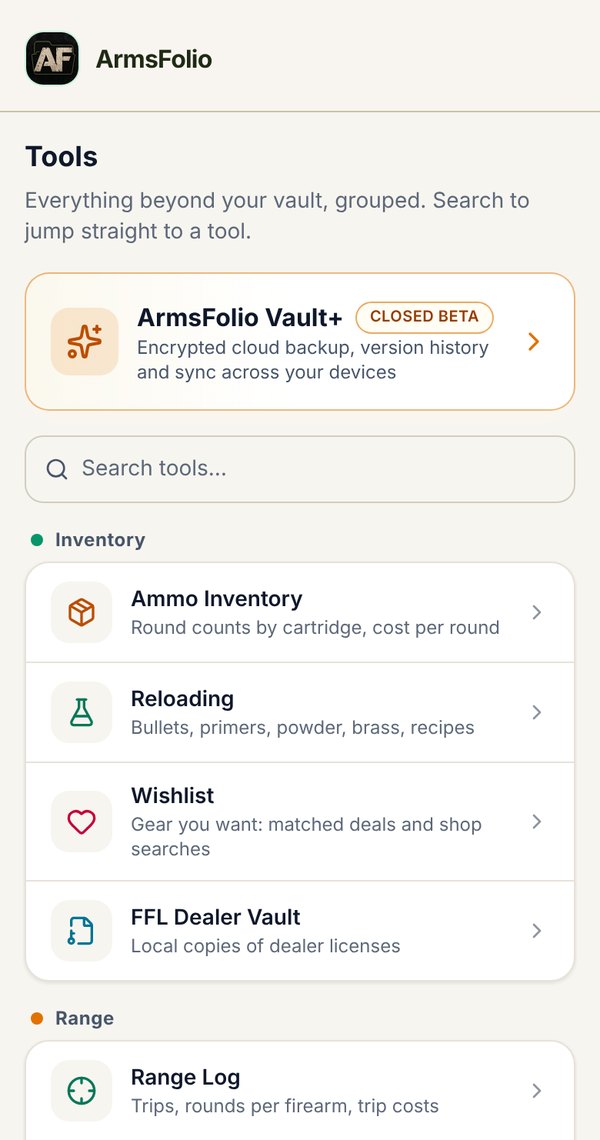
- Tools: everything else, grouped by topic, with a search box.
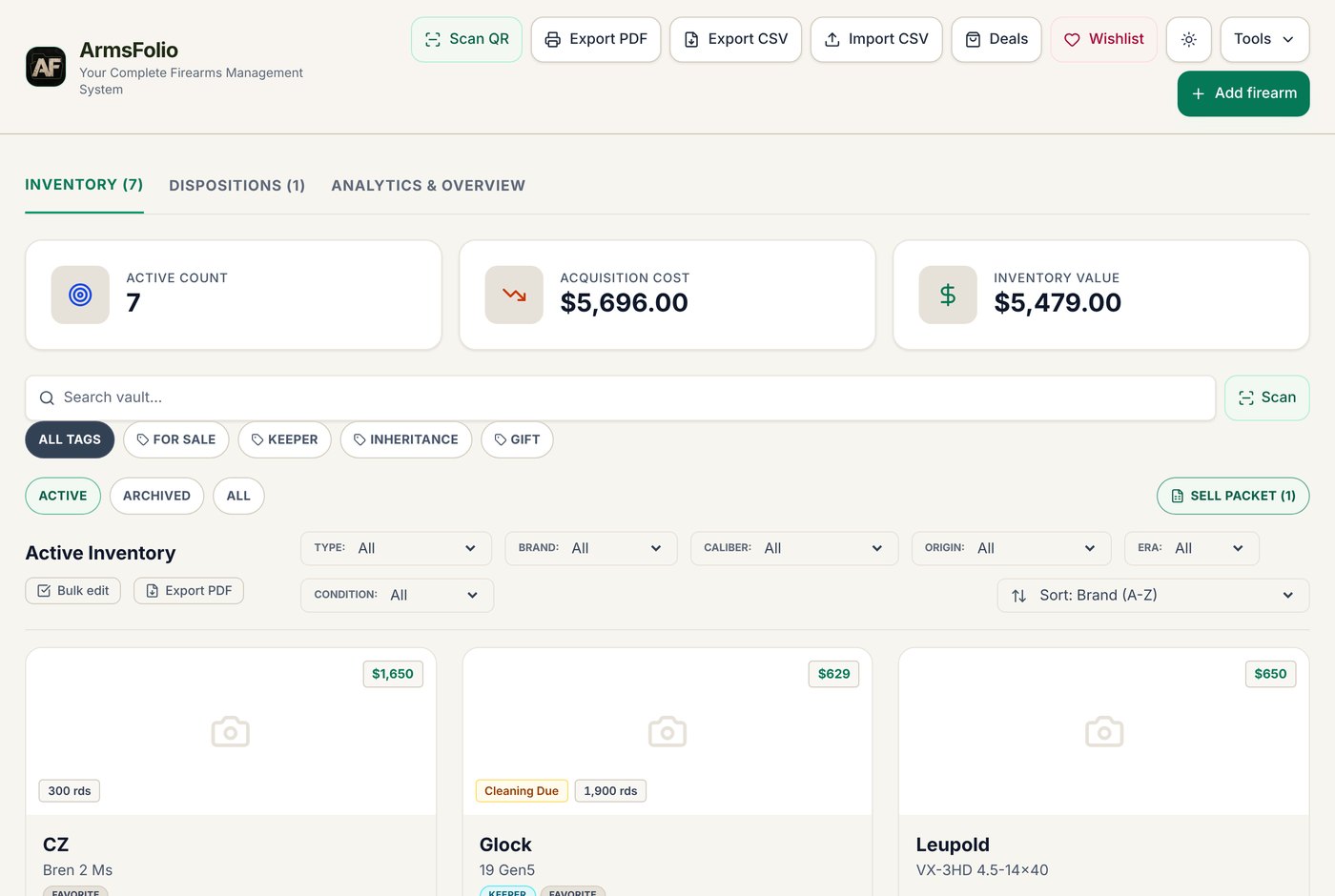
On a computer, the same things sit in the header: Scan QR, Export PDF, Export CSV, Import CSV, Deals, Wishlist, a theme button, the Tools menu and Add firearm. Below the header are three tabs: Inventory, Dispositions and Analytics & Overview.
Light and Dark Theme
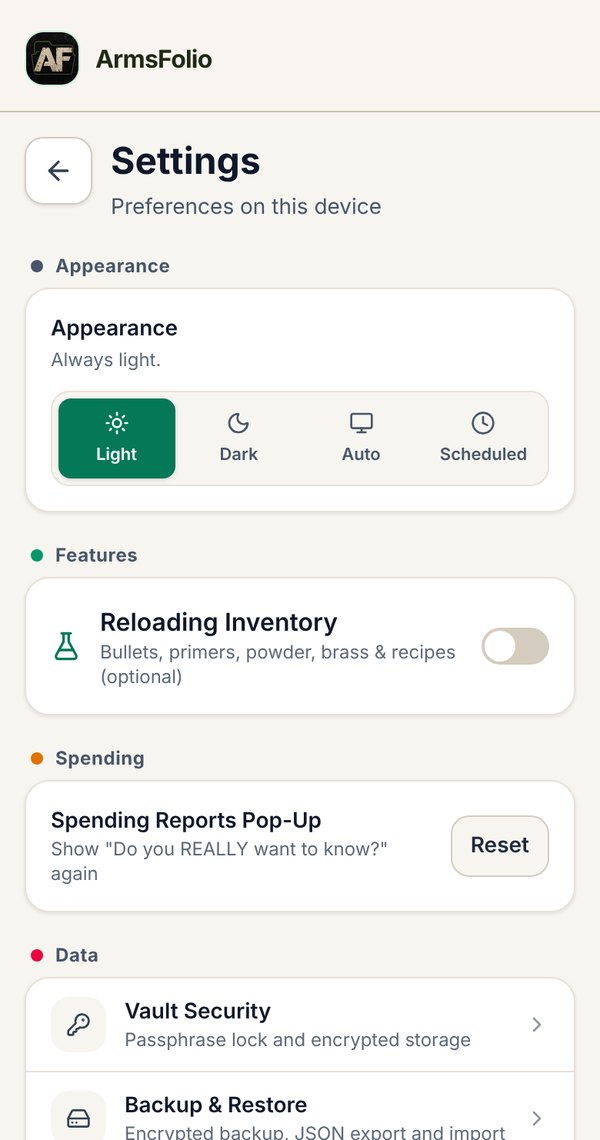
ArmsFolio comes in a Light theme and a Dark theme. Open Tools › Settings › Appearance and pick one:
- Light: always light.
- Dark: always dark.
- Auto: matches your phone or computer's light/dark setting.
- Scheduled: light during the day and dark at night. Choose Sunrise–sunset (approximate, worked out from your time zone, with no location used) or set Custom times.
On a computer you can also switch quickly with the sun/moon button in the header. New installs start on Auto.
Adding Firearms
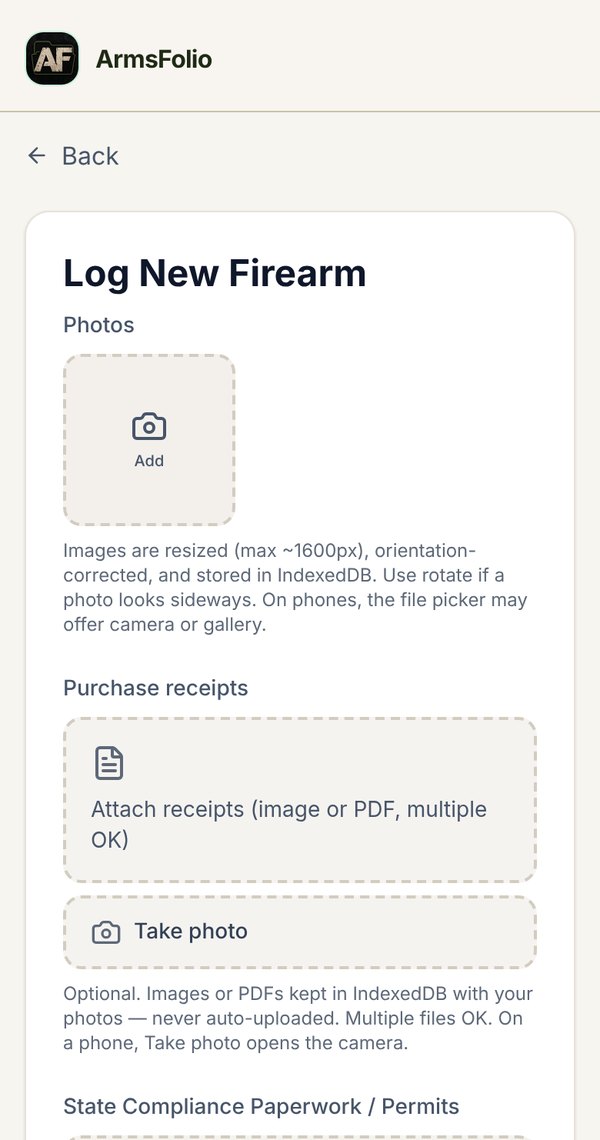
Tap Add (phone) or Add firearm (computer) to open Log New Firearm. Only three things are required: the Category, the Brand / Manufacturer and the Model. Everything else is optional, so you can add the basics now and fill in details later with Edit.
Photos
At the top of the form, add as many photos as you like. On a phone, tap Take photo to use the camera or From gallery to pick existing pictures. ArmsFolio resizes and straightens each picture automatically and stores it on your device.
- Use the arrow buttons to change the order. The first photo becomes the cover on your vault card.
- Use the rotate buttons if a photo still looks sideways.
Purchase Receipts
Under Purchase receipts, attach your receipts as photos, images or PDFs. You can attach several. Take a picture of a paper receipt with Take photo, or attach an emailed PDF.
Permits and Compliance Paperwork
Under State Compliance Paperwork / Permits, attach permits, state forms, purchase permits and any related paperwork, again as photos or PDFs. These are stored the same private way as receipts, and you can open them from the item's page whenever you need them.
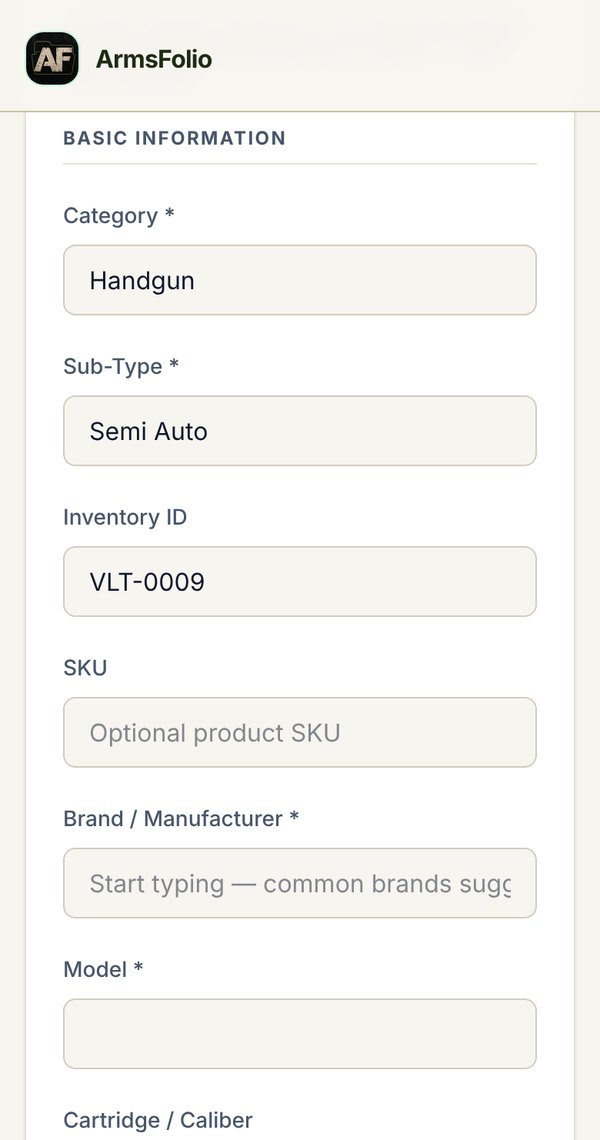
Basic Information
- Category: Handgun, Rifle, Shotgun, Suppressor, Optic, Accessory, Other Firearm (for example a Shockwave or TAC-14), or Other.
- Sub-Type: for example Semi Auto, Revolver, Bolt Action, Pump, Over/Under. Optics have their own categories, such as Red Dot Sight or Rifle Scope.
- Inventory ID: ArmsFolio suggests the next number (VLT-0001, VLT-0002 and so on). Change it to match your own system if you like. This number is what QR tags use.
- SKU: an optional product code.
- Brand / Manufacturer and Model: start typing and common brands are suggested.
- Cartridge / Caliber: common cartridges are suggested as you type.
- Serial Number: if the serial is already on another item, ArmsFolio warns you before saving.
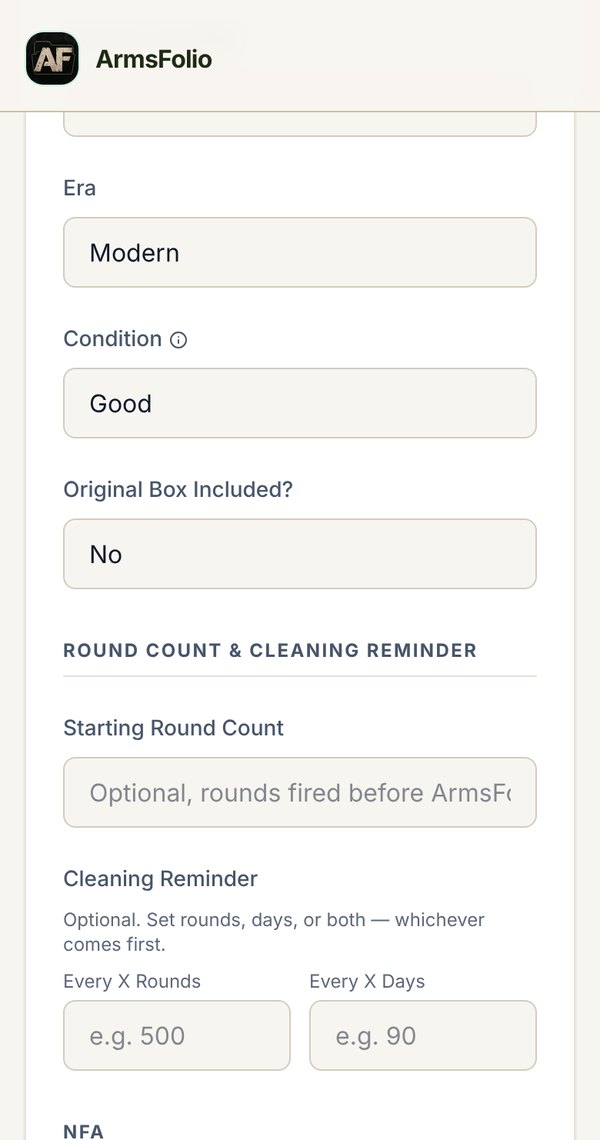
- Country of Origin, Era (Modern or Antique), Condition (New through Parts) and Original Box Included?
Round Count and Cleaning Reminder
- Starting Round Count: rounds you fired before you started using ArmsFolio. They are added to the lifetime count.
- Cleaning Reminder: set Every X Rounds, Every X Days, or both. Whichever comes first triggers a Cleaning Due reminder. See Cleaning Reminders and Reminders.
NFA Items
Tick This is an NFA item to record the Form Type (Form 1, Form 4, Form 5 or Other), Trust / Individual, Stamp Date and NFA Status (Pending, Approved, Disapproved, Transferred or Other).
Notes, Maintenance and Accessories
- Notes & Provenance: free-form notes (zero, setup, quirks) and the item's ownership history.
- Maintenance History: tap Add entry to log a clean, lube, inspection, repair or parts job with an optional cost and next-due date.
- Associated Accessories: link an optic or suppressor you already own to this firearm, or use Add new optic / Add new suppressor. On an optic or suppressor, the same box is called Attached Firearm.
Financials and Storage
- Storage Location (for example "Safe A - Shelf 1").
- Current Manual Value and Estimated Market Value, for your own estimates and comps.
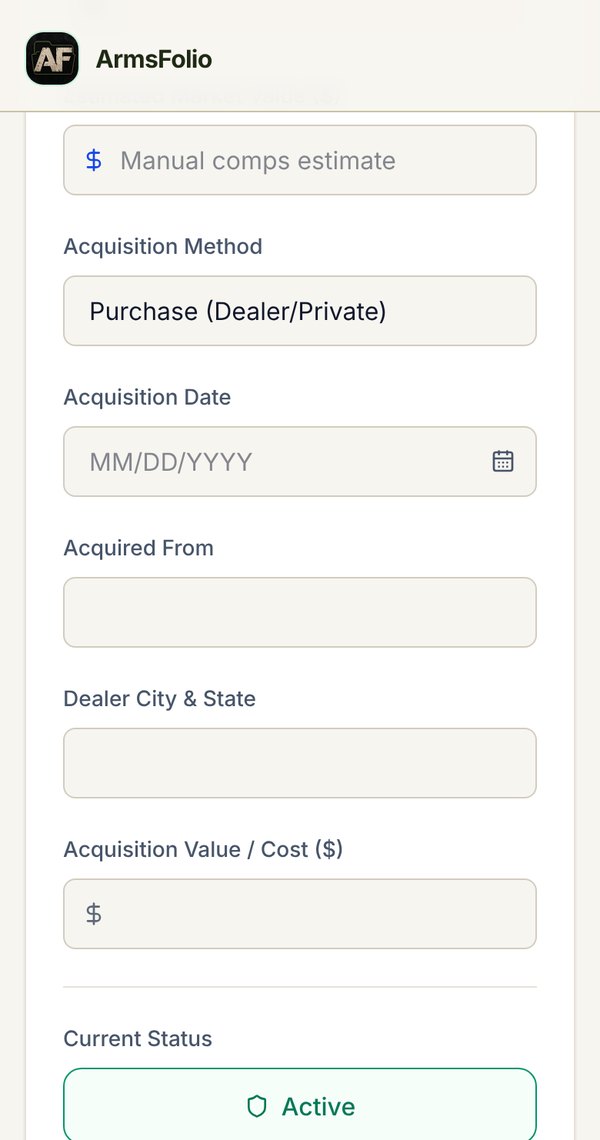
- Acquisition Method (Purchase, Trade, Gift, Inheritance, Manufactured / Built, Other), Acquisition Date, Acquired From, Dealer City & State and Acquisition Value / Cost.
- Current Status: Active, Archived (still owned, but hidden from the active vault) or Disposed.
Tap Add to Vault to save, or Save Changes when editing.
Tags: For Sale, Keeper, Favorite and More
Tags are short labels that show on vault cards and that you can filter by. ArmsFolio has five built-in tags, each with its own color: For Sale, Keeper, Inheritance, Gift and Favorite. You can also add your own tags. Firearms tagged Favorite appear under the Favorites filter when you log a range trip.
How to add tags: in the add or edit form, scroll to Tags and tap a tag to turn it on (tap again to turn it off). To make your own, type it in Add a Custom Tag and tap Add Tag.
When For Sale is on, three more fields appear: Asking Price, Lowest Price and Sale Notes. They show on the item's page and in the Sell Packet. Turning For Sale off clears them when you save.
Tags and sale fields are the same ones CSV uses (Tags, Ask Price, Floor Price and Sell Notes columns; separate several tags with semicolons, for example Keeper; Favorite), so you can also set them in a spreadsheet and import it. See Backup & Restore and CSV.
The Vault
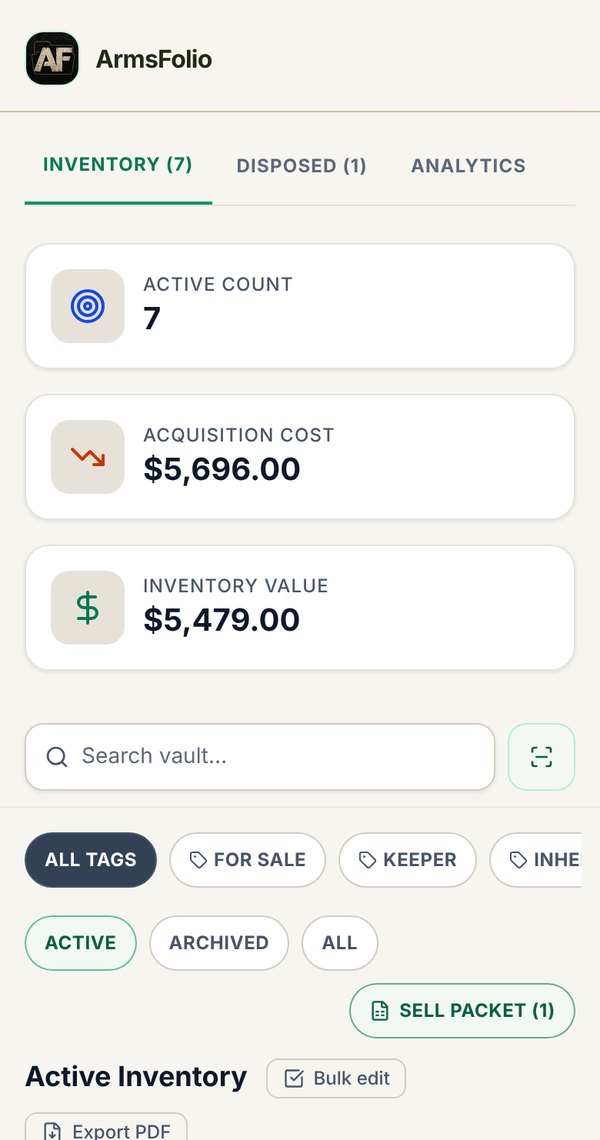
The Vault is your home screen. At the top you'll see totals: Active Count, Acquisition Cost and Inventory Value. Below that are the search box, filters and your item cards.
Each card shows the cover photo, current value, brand and model, tags, inventory number, type, lifetime round count, and a Cleaning Due badge when a firearm needs attention. Tap a card to open the item.
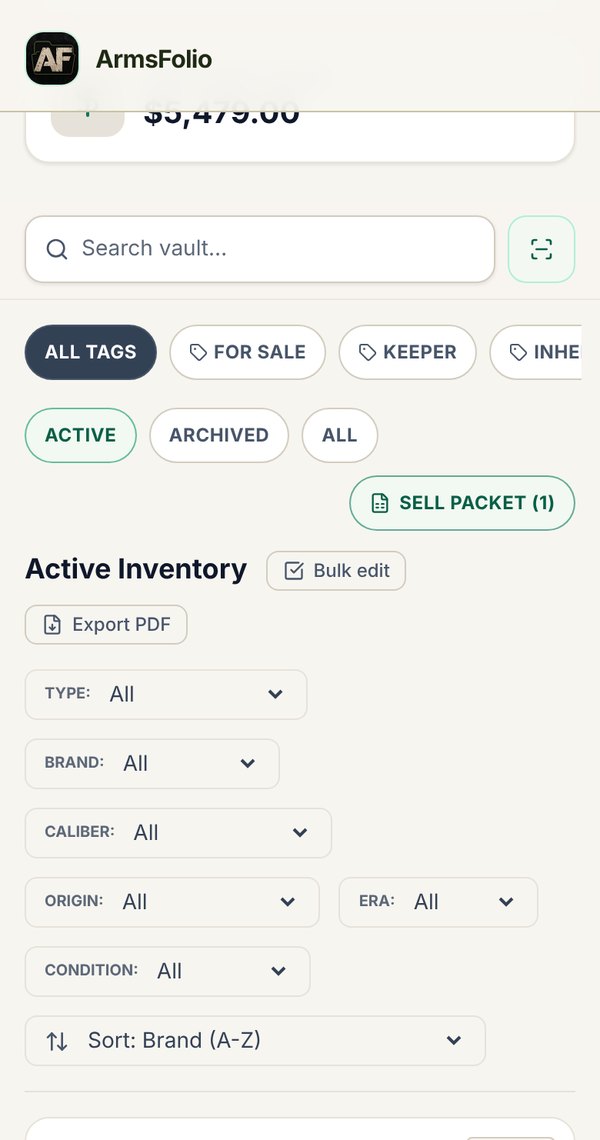
Search
Type in Search vault… to find items by brand, model, caliber, serial number, inventory number, SKU, type, condition, storage location, where you bought it, notes or tag. The list updates as you type. The Scan button next to the search box opens the QR scanner.
Filters
- Tag chips: All tags, For Sale, Keeper, Inheritance, Gift, Favorite.
- Status chips: Active, Archived or All.
- Dropdown filters: Type, Brand, Caliber, Origin, Era and Condition. The choices come from your own vault.
The totals above the list follow your filters, so you can see, say, the value of just your handguns.
Sort
Choose from Brand (A-Z), Model (A-Z), Type (A-Z), Value (High-Low), Value (Low-High), Most Shot, Acquired (Newest or Oldest) and Added to ArmsFolio (Newest or Oldest). On the Disposed tab you can also sort by date disposed.
Bulk Edit
Tap Bulk edit, tick the items you want to change, then set a new Storage location, a new Status (Active, Archived or Disposed), or both, and apply. This is the quickest way to record that you moved half the safe.
Export PDF
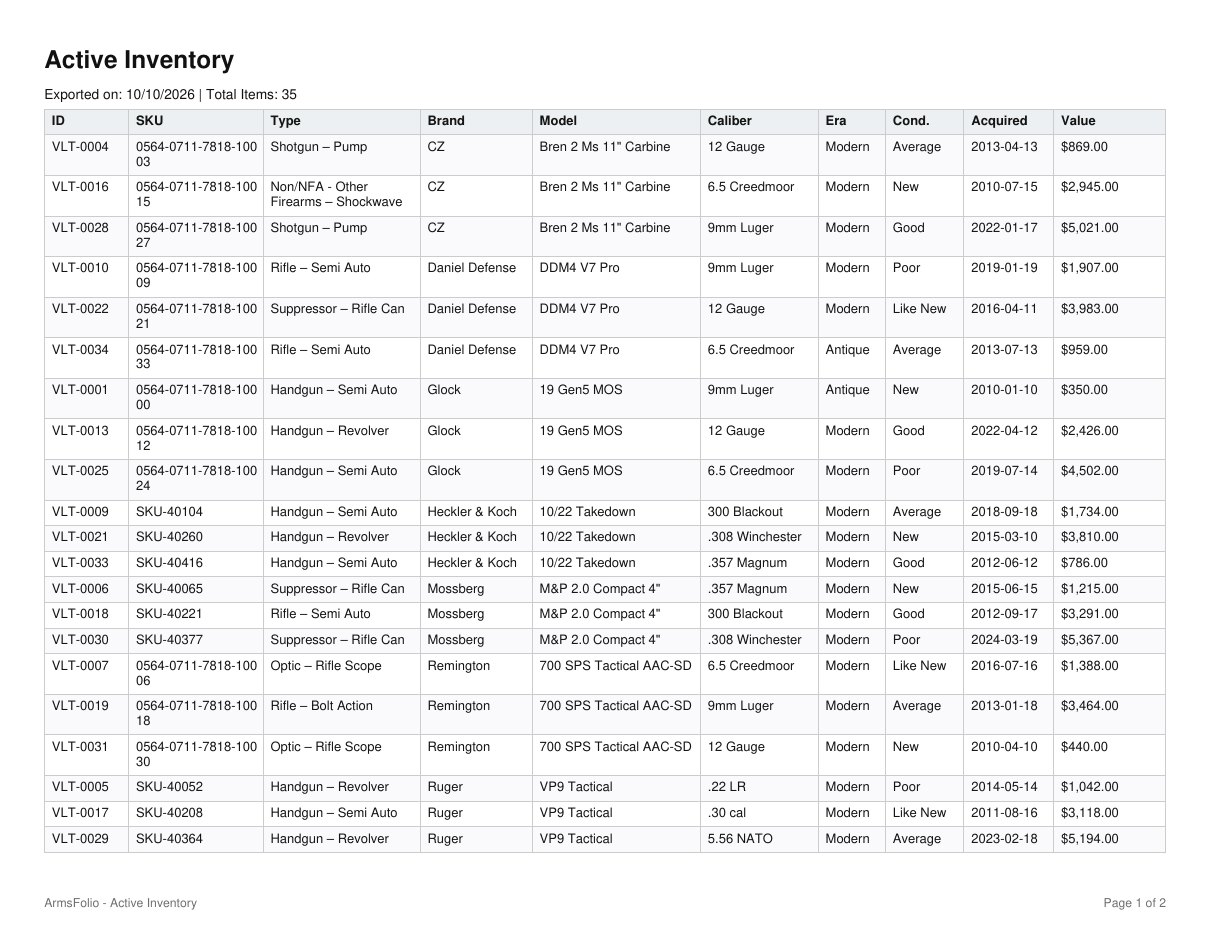
Tap Export PDF to print, or save as a PDF, exactly the list you're looking at, with your current search, filters and sort. The export uses US Letter landscape, repeats the column headings on every page and numbers the pages ("Page X of Y"). In the print window, pick your printer or choose Save as PDF.
Sell Packet
When at least one item is tagged For Sale, a Sell Packet button appears with a count. It builds a printable, shareable packet of those items with ask and floor totals. Print it, save it as PDF, or copy the text to paste into a listing.
Removing Items and Undo
To remove an item, open it and choose More › Remove. A message with Undo appears for a few seconds in case you tapped by mistake. If you sold or transferred the item, use Dispose instead so you keep the record (see Dispositions).
Back to top ↑The Gun Detail Page
Tap any item to open its page. Along the top are the main actions: Dispose, Archive, Share, Print / export history, Edit and More. On a phone, they appear as a row of icon buttons next to More.
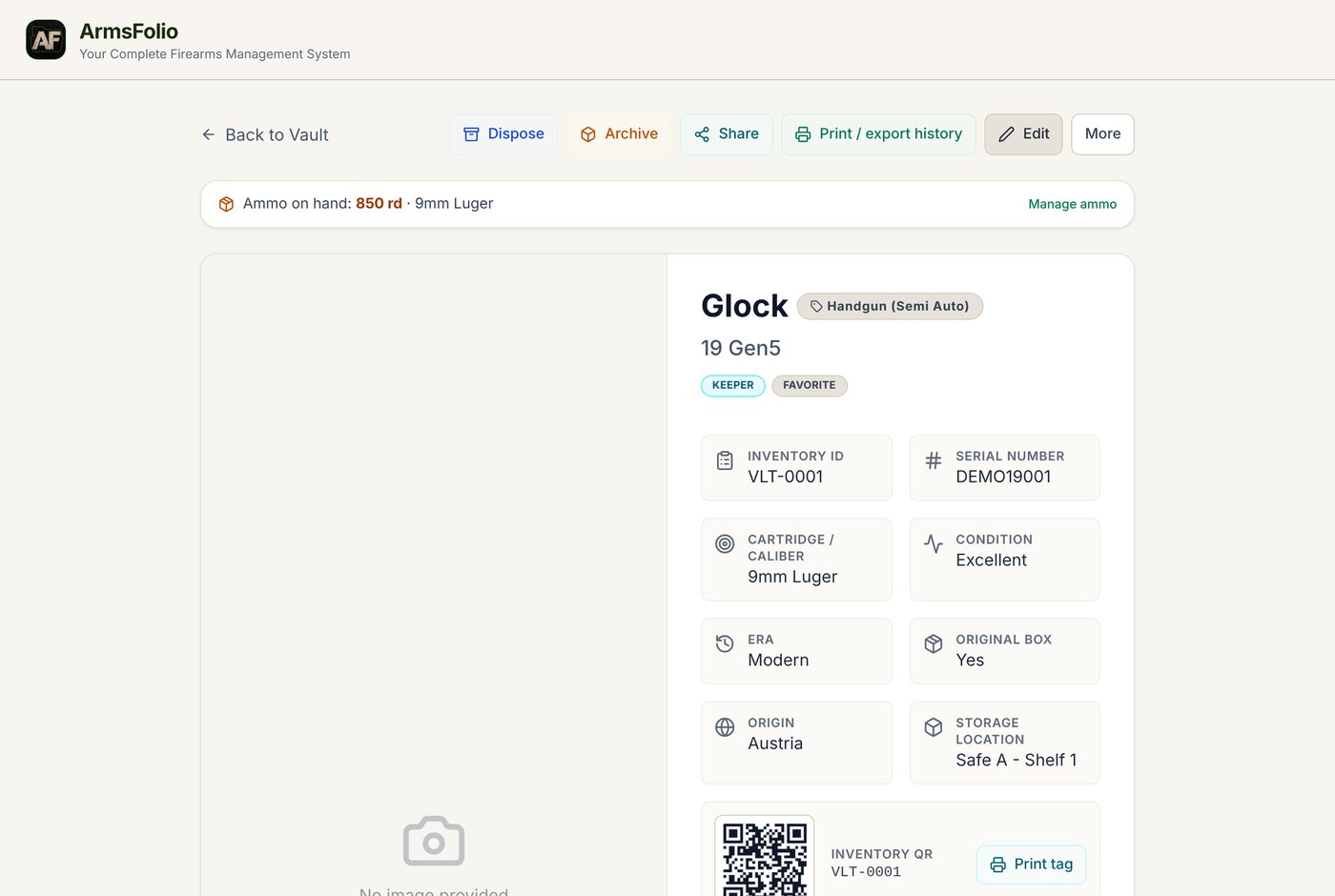
From top to bottom you'll find:
- Ammo on hand for that caliber, with a Manage ammo shortcut.
- Photos, with rotate buttons and photo sharing.
- Identity: inventory ID, serial number, caliber, condition, era, original box, origin and storage location.
- Inventory QR: the item's QR code and a Print tag button.
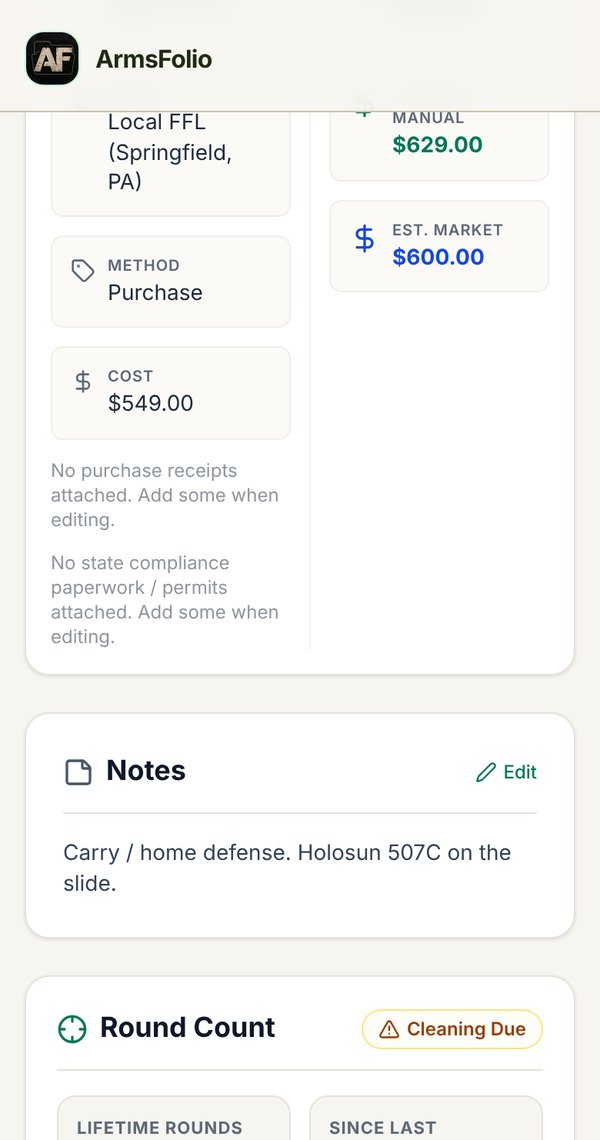
- Acquisition: date, where from, method and cost, plus your Purchase receipts and State Compliance Paperwork / Permits. Tap a file to view, download or share it.
- Valuation: acquisition, current manual and estimated market values.
- Notes, Round Count and Maintenance History, in that order.
- NFA Details (NFA items), Associated Accessories or Attached Firearm, and the transfer record for disposed items.
- Market Research and Video Reviews & Media.
- Shop / Research links and the Deals for Your gun strip at the very bottom.
Notes
Tap Edit next to Notes to change them right on the page, without opening the full form.
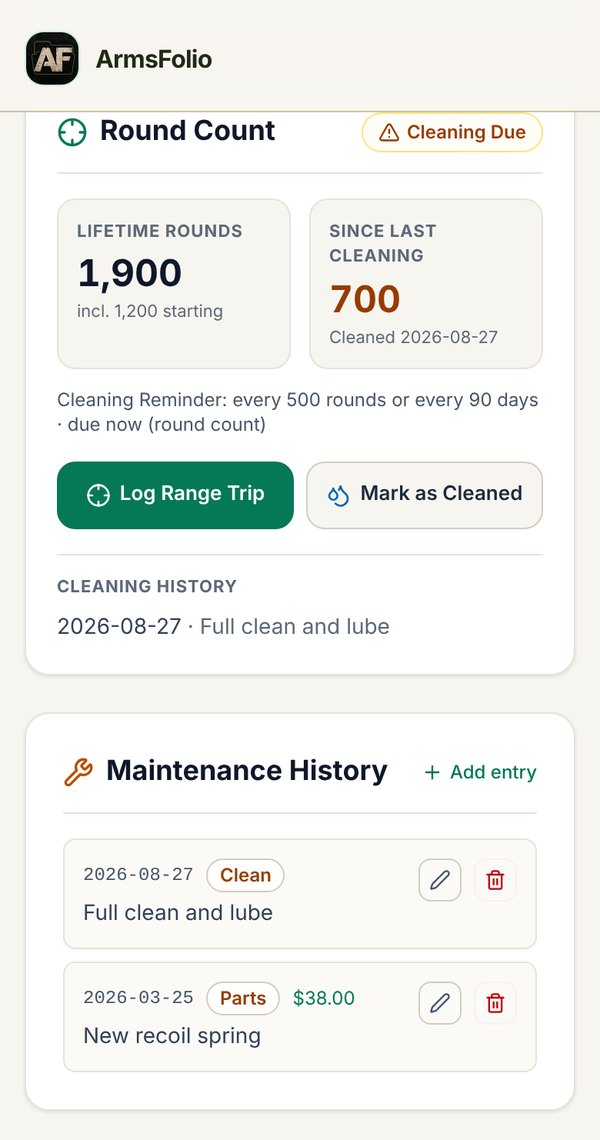
Round Count
The Round Count card shows Lifetime Rounds (including any starting count) and rounds Since Last Cleaning, with the date you last cleaned. Two buttons sit side by side:
- Log Range Trip opens the trip logger with this firearm already picked.
- Mark as Cleaned records today's cleaning, resets the "since last cleaning" counter and adds a line to the Cleaning History.
Maintenance History
Tap Add entry to log work done: date, type (Clean, Lube, Inspect, Repair, Parts or Other), cost, notes and an optional next-due date. Use the pencil to edit or the trash can to delete an entry. Maintenance costs count toward your spending reports.
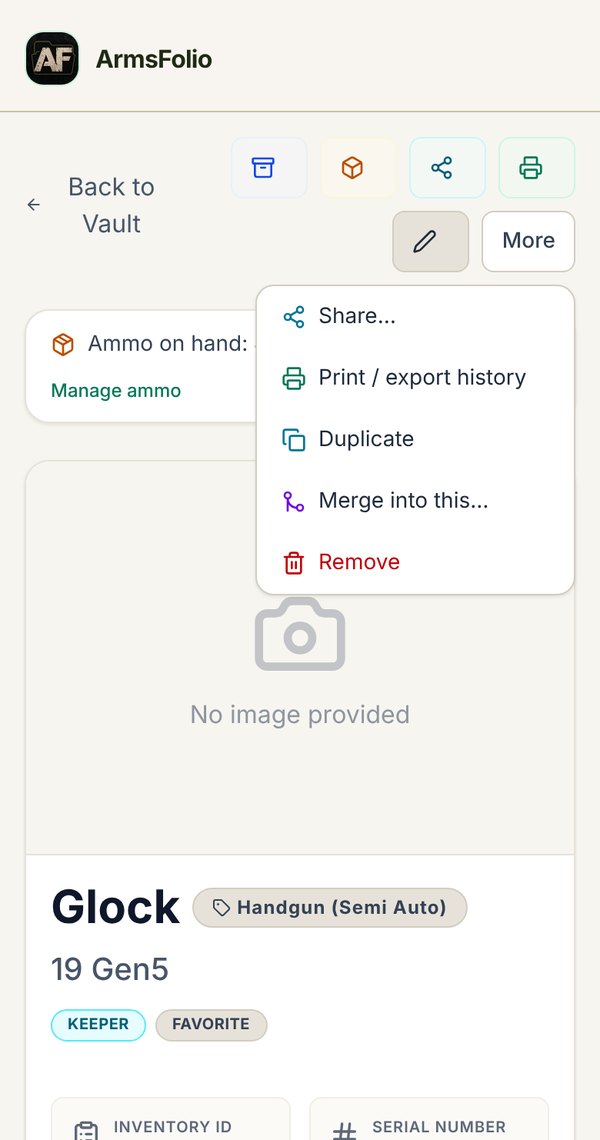
More Actions
- Share…: send a summary, a deep link, an email, or a text or JSON history file using your device's share sheet. Nothing is uploaded by ArmsFolio; you decide where it goes.
- Share photos…: pick photos to share, download or copy.
- Print / export history: a complete printable history of the item, including identity, purchase, NFA, notes, linked items, maintenance and disposition.
- Duplicate: copy the item as a starting point for a similar one.
- Merge into this…: combine an accidental duplicate into this item. The other entry is removed (with a few seconds to Undo).
- Remove: delete the item, with Undo.
Market Research
Search GunBroker, Search ArmsList and Search Guns.com open searches for the same make and model so you can check prices and set a realistic value. Watch on YouTube opens reviews and tutorials. GunBroker and ArmsList are plain search links. Some links are affiliates.
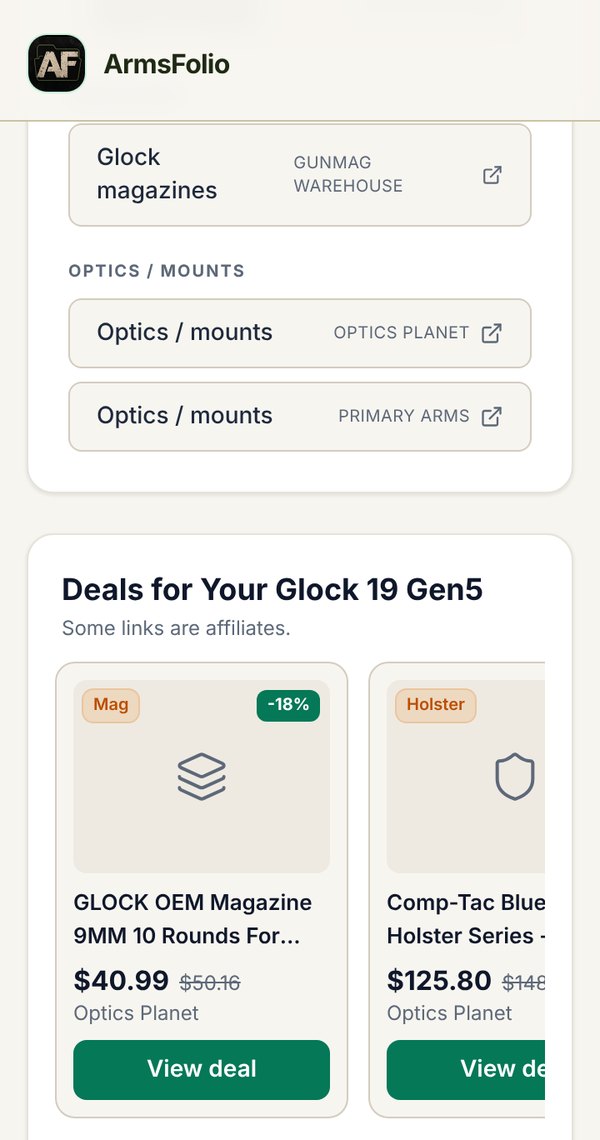
The Deals Strip
At the bottom of every firearm's page, Deals for Your (gun) shows up to five current deals picked for that gun, such as ammo in its caliber, magazines, holsters for handguns or optics and slings for long guns, and cleaning kits. Matches from the SlavGuns daily deals appear first. Tap View deal to open the store, or More on SlavGuns.com for everything. If nothing matches today, you'll see a link to all deals instead.
Only the brand, model, caliber and type are used to find these deals. Your serial numbers, values and notes are never used. Some links are affiliates.
Range Log
The Range Log records your trips to the range: where you went, what you shot and how many rounds. Your round counts and cleaning reminders update automatically.
Open it from Tools › Range Log, or tap Log Range Trip on any firearm's page. The list shows each trip with its date, total rounds, cost (if you tracked it), location and the guns you shot. Use the pencil to edit a trip or the trash can to delete it. Deleting a trip removes its rounds from the round counts.
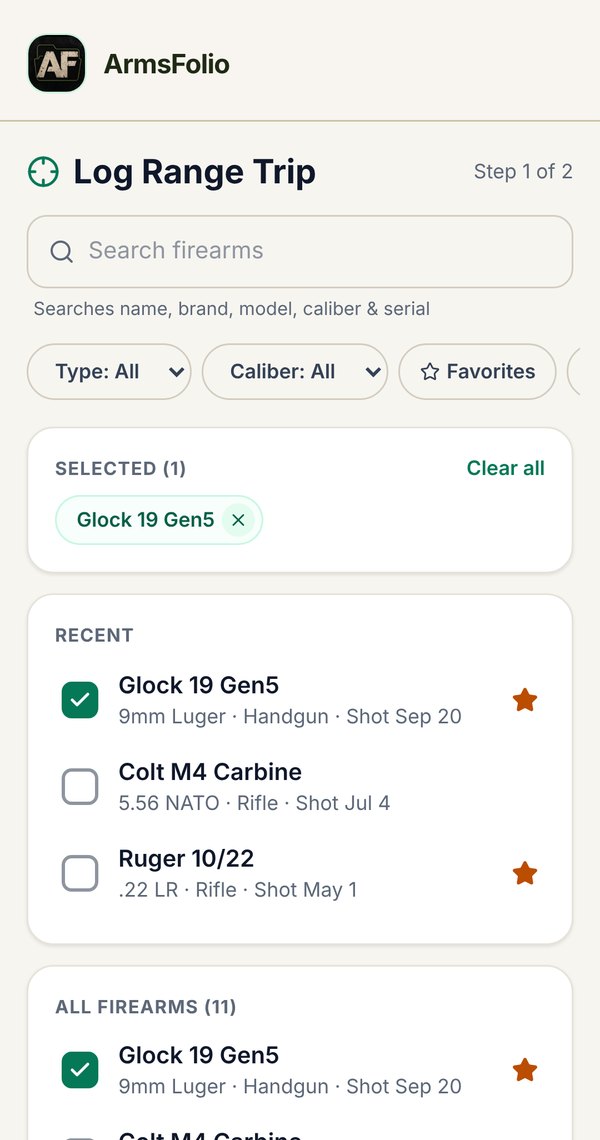
Step 1: Pick Your Firearms
- Search by name, brand, model, caliber, serial or inventory number. Every word you type must match.
- Narrow down with the Type and Caliber filters, or the Favorites (guns tagged Favorite) and Recently Shot chips.
- With no filter on, a Recent section shows the last three guns you shot.
- Tick as many firearms as you like, or use Select all for the current results. Picked guns show as chips at the top; tap one to remove it, or Clear all.
- Tap Next: Rounds to continue.
If you started from a firearm's page, ArmsFolio skips straight to Step 2 with that gun. Tap Back to add more.
Step 2: Rounds, Ammo and Notes
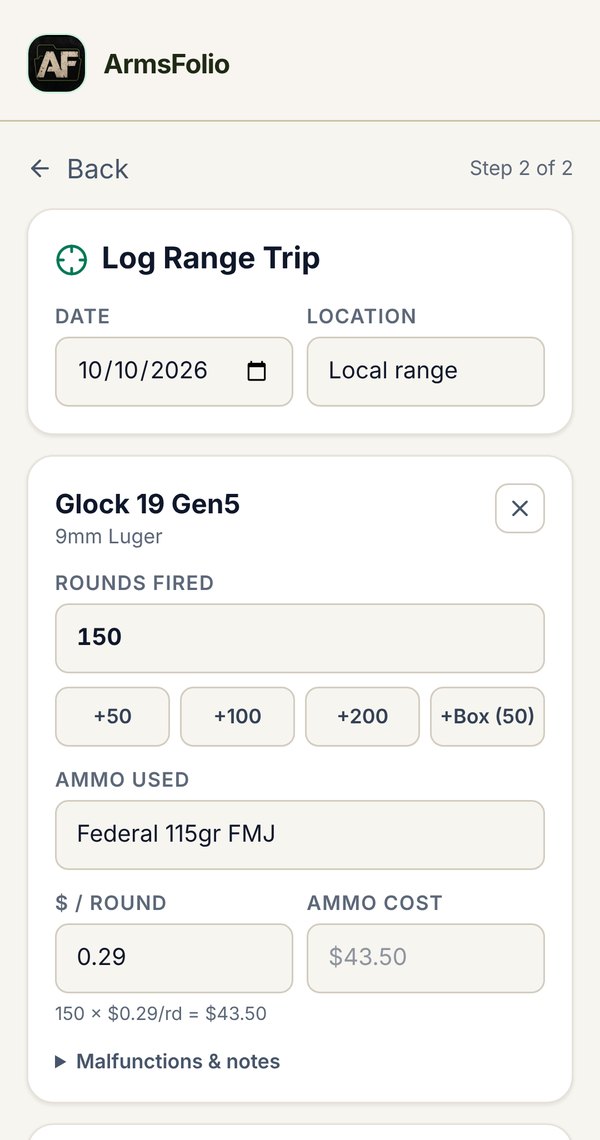
- Set the Date and an optional Location.
- For each gun, enter Rounds Fired, or tap the shortcuts +50, +100, +200 or +Box. A box is 25 rounds for shotguns and 50 for everything else.
- Type the Ammo Used if you like (for example "124gr FMJ").
- Open the disclosure under each gun to record Malfunctions, Malfunction Notes and notes.
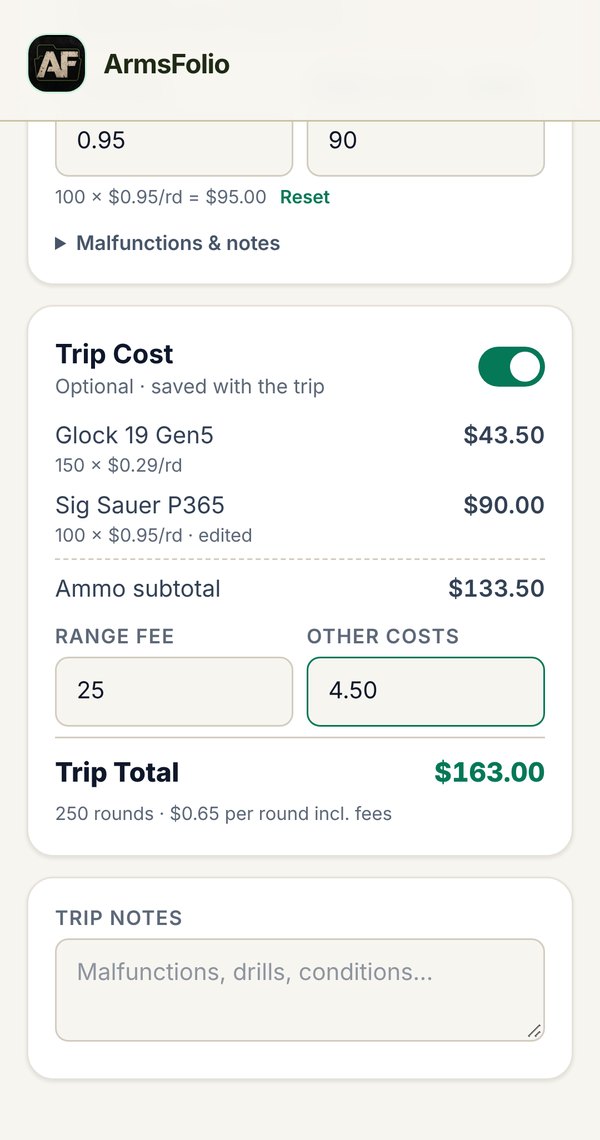
- Add Trip Notes for the day (drills, weather, conditions).
Trip Cost (Optional)
Switch on Trip Cost to track what the day cost:
- $ / Round for each gun. ArmsFolio multiplies it by the rounds fired. If that gun's ammo in Ammo Inventory has an Ammo cost, a new trip fills in its cost per round for you (ammo linked to the gun first, then ammo of the same cartridge). You can change it, type over the ammo cost and use Reset to go back to the calculated amount.
- Range Fee and Other Costs (targets, rentals) for the whole trip.
- ArmsFolio shows the ammo subtotal, the Trip Total and the cost per round including fees.
Tap Save Trip. If the trip pushes a firearm past its cleaning reminder, ArmsFolio tells you which guns are now due.
Back to top ↑Cleaning Reminders and Reminders
Cleaning Reminders
Give any firearm a cleaning reminder when you add or edit it: every so many rounds, every so many days, or both (whichever comes first). When a firearm is due:
- its vault card and its page show a Cleaning Due badge, and
- it is listed under Tools › Reminders.
When you're done at the bench, open the gun and tap Mark as Cleaned. The counter resets and the date goes into its Cleaning History.
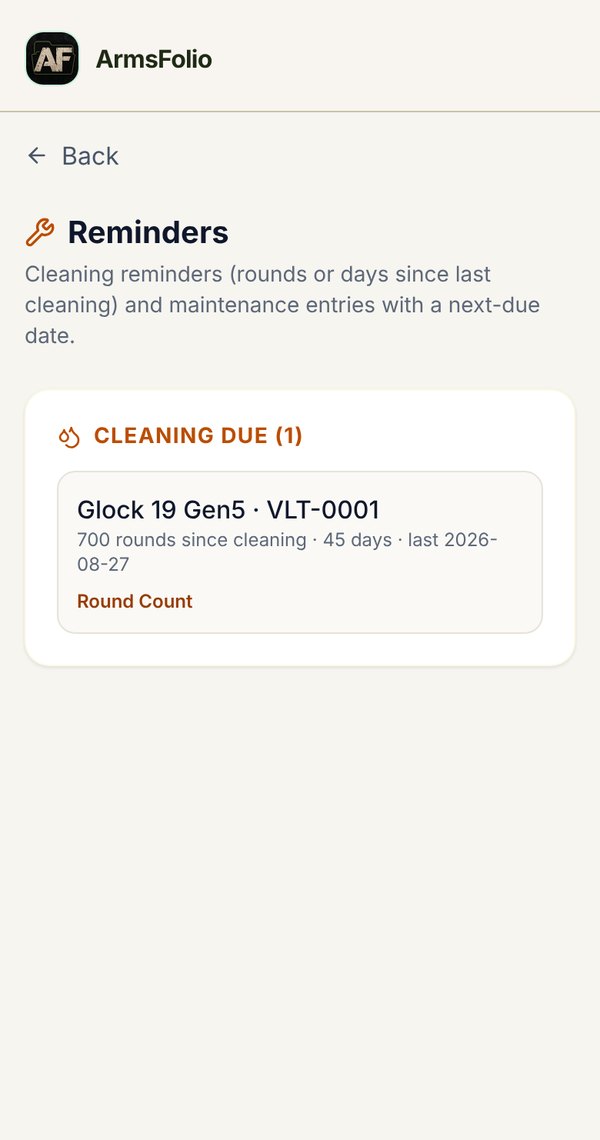
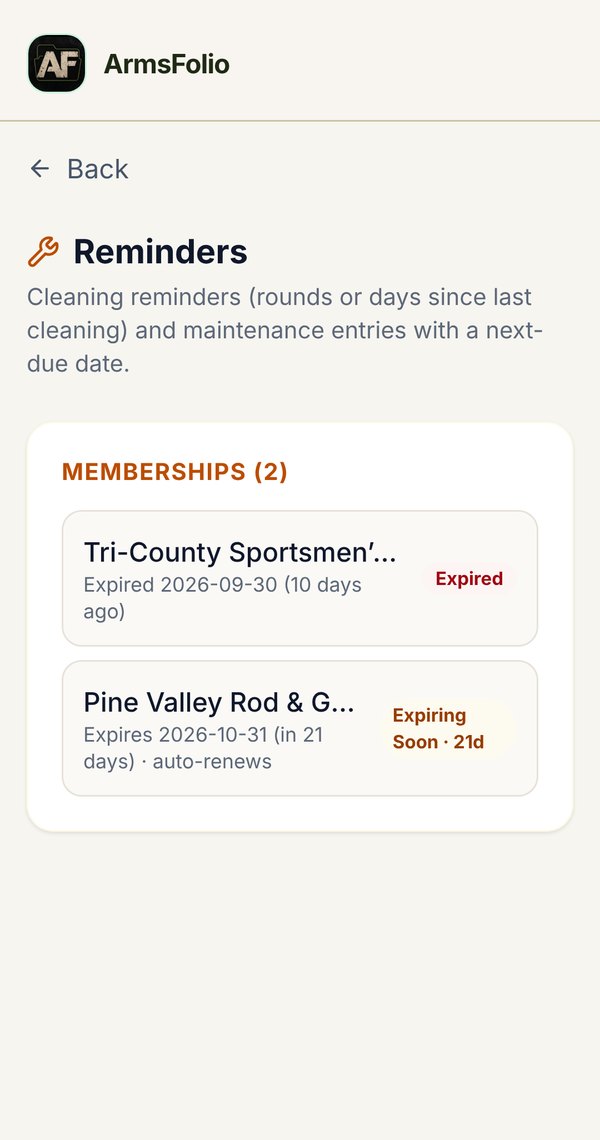
The Reminders Screen
Tools › Reminders gathers everything that needs your attention in one list:
- Cleaning Due: firearms past their round or day limit, with rounds and days since the last cleaning.
- Maintenance: maintenance entries that have a next-due date coming up or past.
- Memberships: memberships that are Expiring Soon (within 30 days) or Expired.
- Reloading Low Stock: reloading components below their low-stock level (when Reloading is turned on).
Ammo Inventory
Tools › Ammo Inventory tracks the rounds you have on hand. The Totals by Cartridge card adds everything up.
To add ammo, tap Add stock and fill in:
- Cartridge (for example 9mm Luger) and an optional SKU.
- Entry mode: enter Rounds or Boxes (with the rounds per box).
- An optional Cost Per Box and/or Cost Per Round. With a box price and rounds per box, ArmsFolio works out the cost per round for you. A per-round price wins if you enter both.
- An optional linked firearm, so the stock shows on that gun's page as "Ammo on hand".
- Notes such as brand, grain or storage bin.
Each stock line has Add and Remove buttons with an optional note (a purchase, a range trip). Open a line's history to see every change. The trash can deletes a line.
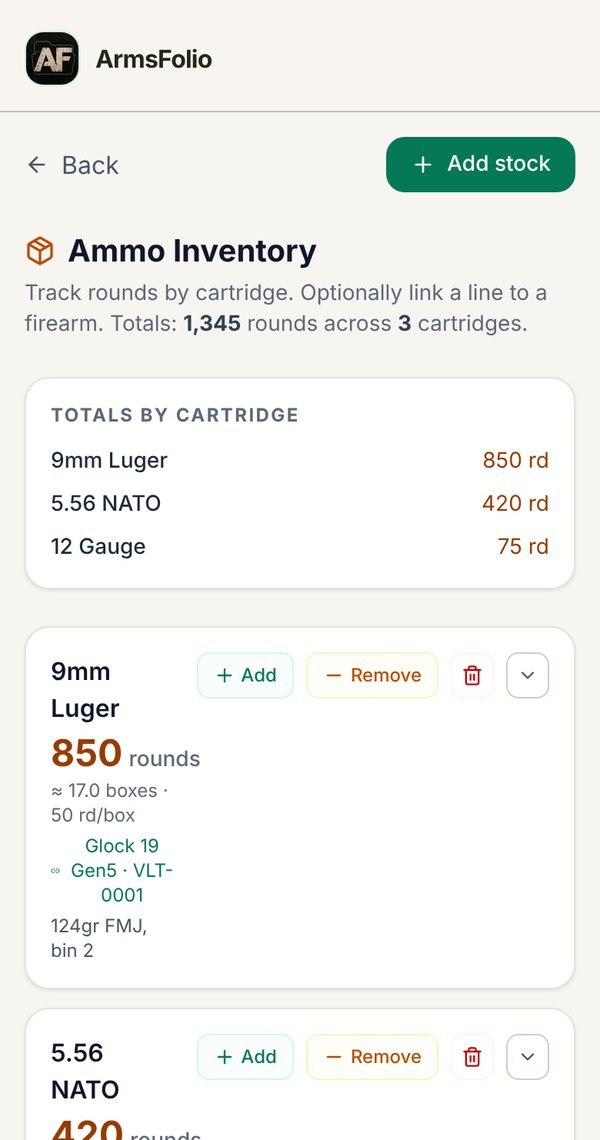
To add or change the price of an existing line, tap Add Ammo Cost (or Edit Ammo Cost) under it, then Save Cost. The line shows the box price, the cost per round and the value of the rounds on hand.
Back to top ↑Reloading Inventory
If you load your own ammunition, ArmsFolio can track components, load recipes and loaded batches. Reloading is optional and switched off until you need it.
Turn It On
Go to Tools › Settings › Features and switch on Reloading Inventory (or tap Turn On Reloading Inventory the first time you open Reloading). Then open Tools › Reloading.
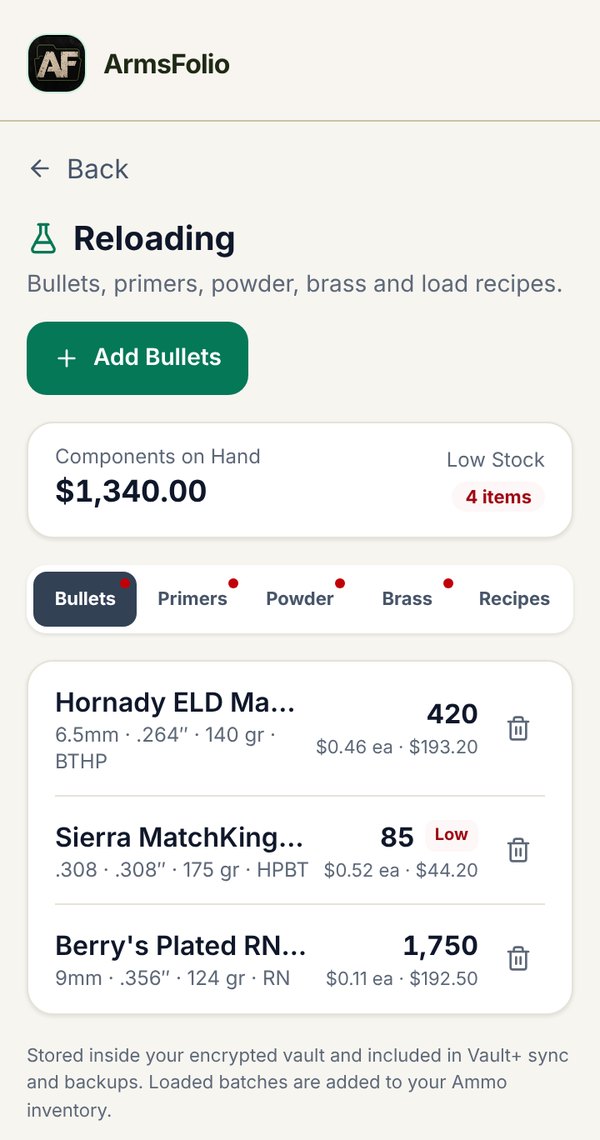
Components
Reloading has tabs for each kind of component:
- Bullets: brand, caliber, diameter, weight (gr), type, quantity and cost each.
- Primers: brand, size/type, quantity and cost per 1,000.
- Powder: name, pounds on hand and cost per pound.
- Brass: headstamp, cartridge, number of cases, times fired, how many are prepped, and cost per case.
Each item has a Low Stock Below level. The defaults are 100 bullets, 200 primers, 1 lb of powder and 50 cases. Low items get a Low badge, their tab gets a dot, the summary card counts them, and they're listed in Tools › Reminders.
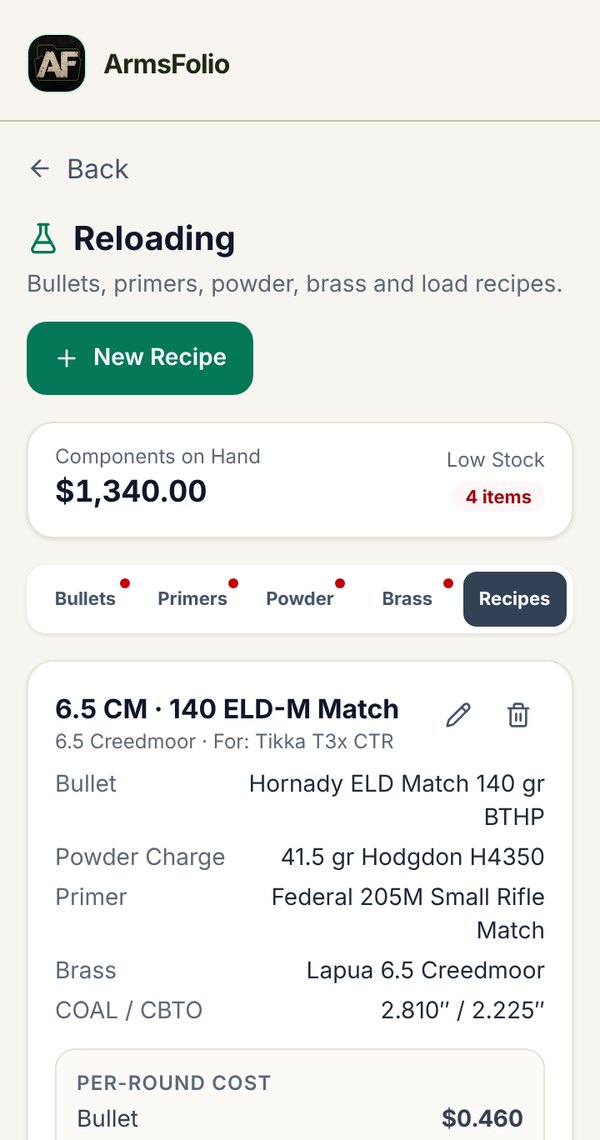
Load Recipes
On the Recipes tab, tap New Recipe and enter the recipe name, cartridge, bullet, powder and Charge (gr), primer, brass, Brass Firings, COAL and CBTO, an optional firearm, and notes such as your load data source.
ArmsFolio works out the Per-Round Cost from your component costs: the bullet, the powder charge, the primer, and the brass cost spread over its firings (10 by default). It flags any component that's missing a cost.
Loaded Rounds Batches
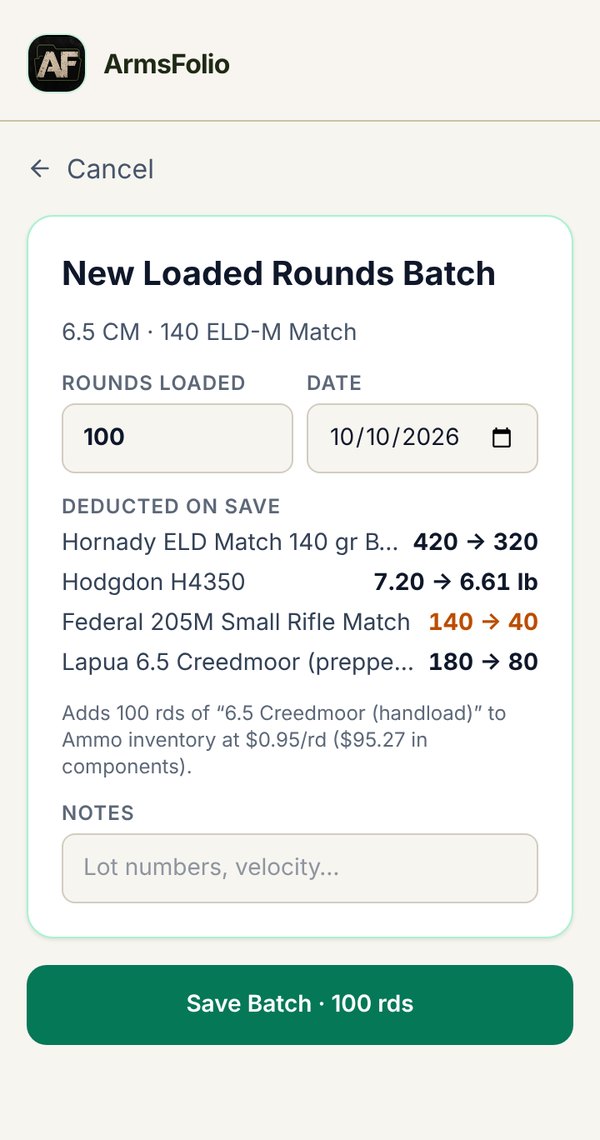
When you finish a session, log a Loaded Rounds batch from the recipe. Enter Rounds Loaded, the date and notes (lot numbers, velocity). Before saving, ArmsFolio previews each component's before and after amounts and warns you if you'd go below zero. When you save, it:
- deducts the bullets, primers and powder you used and uses up prepped brass (the cases stay in your inventory),
- adds the rounds to your Ammo Inventory as a "Handload" line linked to the recipe (later batches add to the same line), and
- records the batch and what it cost.
Batch History and Undo
The Recipes tab lists every batch with its date, recipe, rounds, cost per round and total.
- Edit undoes the batch (putting back everything it used), then re-applies it with the new count, date and notes.
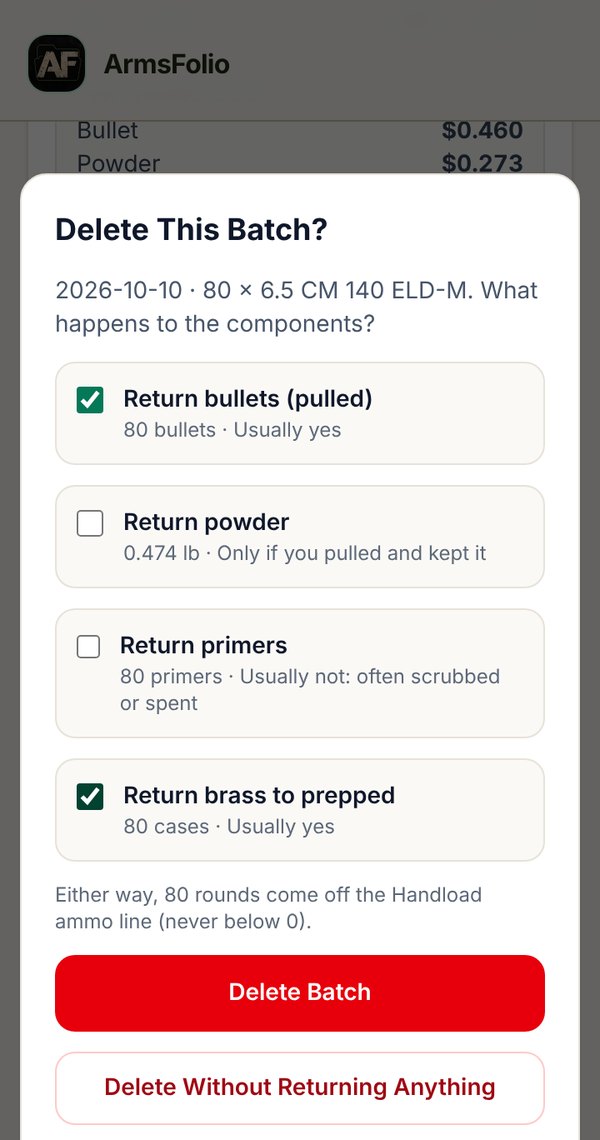
- Delete asks what goes back on the shelf, one checkbox each: Return bullets (pulled) and Return brass to prepped are ticked by default; Return powder and Return primers are not, since primers are usually spent or scrubbed. Choose Delete Batch, or Delete Without Returning Anything.
Either way, the batch's rounds come off its Handload ammo line (never below zero). If some were already shot, ArmsFolio tells you how many.
Memberships
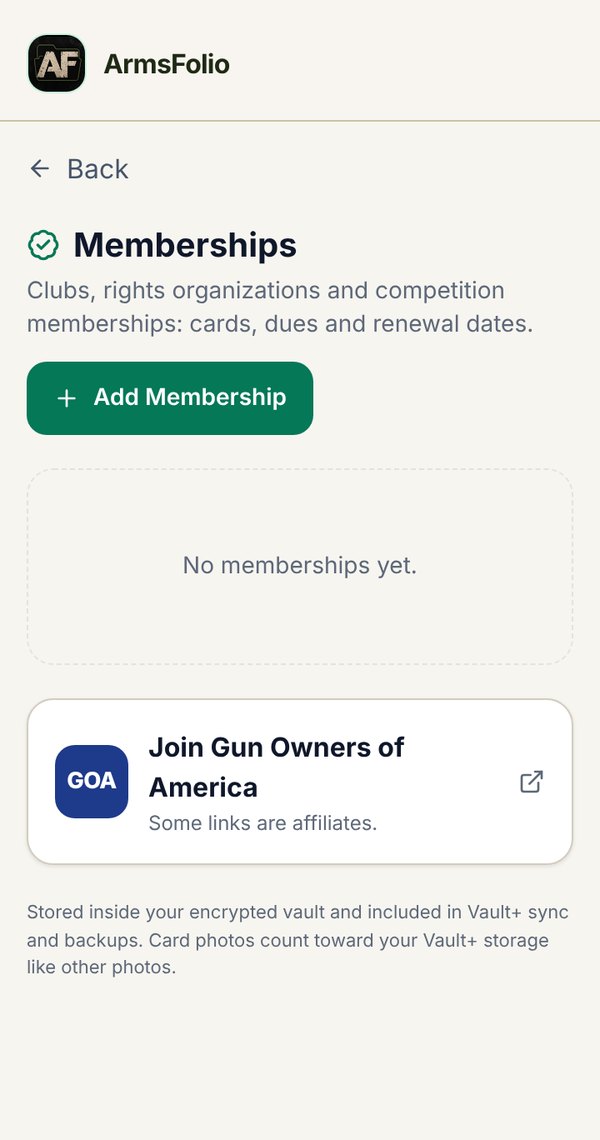
Tools › Memberships keeps your club cards, organization memberships and competition numbers in one place, with renewal dates and dues.
Adding a Membership
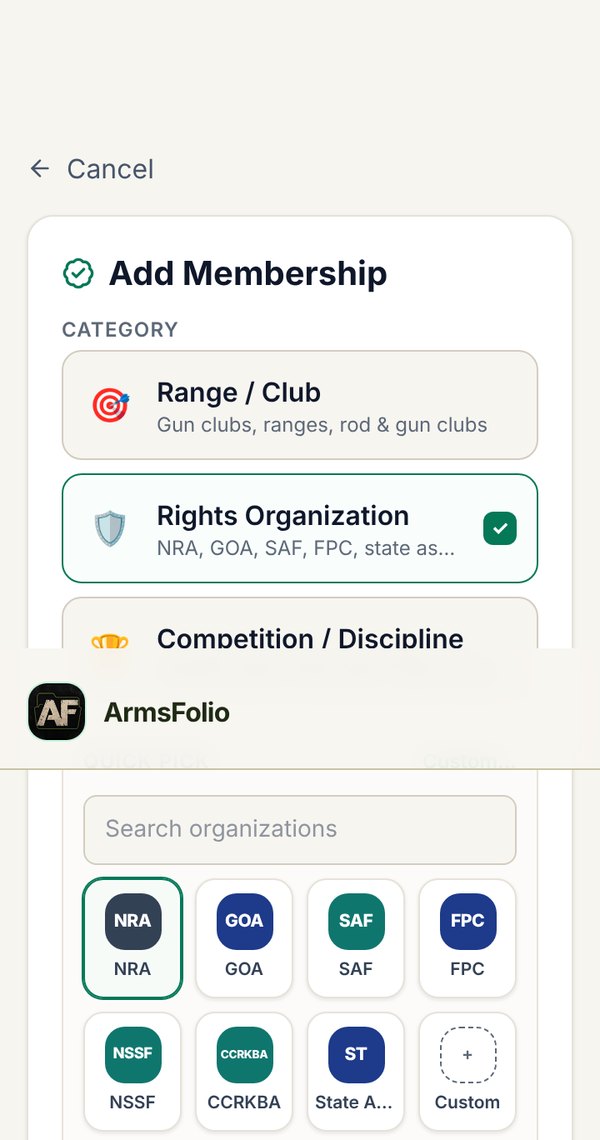
Tap Add Membership and choose a Category:
- Range / Club for your local range or gun club.
- Rights Organization for groups such as NRA, GOA, SAF, FPC, NSSF, CCRKBA or your state association.
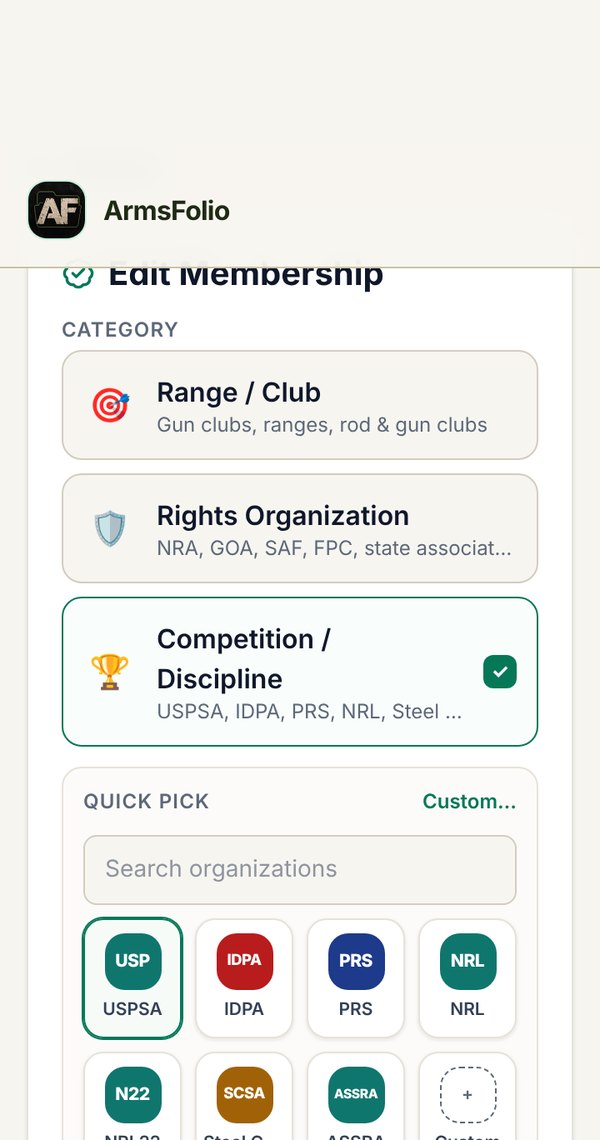
- Competition / Discipline for USPSA, IDPA, PRS, NRL, NRL22, Steel Challenge, ASSRA and others.
For organizations, pick one from Quick Pick (shown as simple initials tiles), search for it, or choose Custom… to type your own.
Then fill in what you have: club or organization name, Membership #, Type, Join / Start Date, Expiration, dues, Auto-renews, contact, website and notes.
Membership Types and Dues
- Type: Monthly, Annual, 3-Year, 5-Year, Lifetime or Other.
- The fee field follows the type: Monthly Dues, Annual Dues, Term Fee (3- or 5-Year) or Lifetime Fee.
- The expiration date is suggested from the join date (plus a month, a year, 3 years or 5 years). You can change it, and a date you type yourself is never overwritten. Lifetime memberships don't expire.
- Rights organizations also have a Membership Level: Annual, Multi-Year, Life, Endowment, Patron, Benefactor or Other. Life-type levels are treated as Lifetime.
ArmsFolio shows Dues to Date for each membership and adds your dues to the Total Spending report.
Competitor Details
For competition memberships, open Competitor Details to save your member or competitor number, one or more Division and Classification pairs (with suggestions for each organization, such as USPSA divisions and classes) and Season / Ranking Notes. Use + Add Another Division for more.
Card Photos
Add a Card Front and Card Back photo with Take Photo or Gallery, so you always have your card with you.
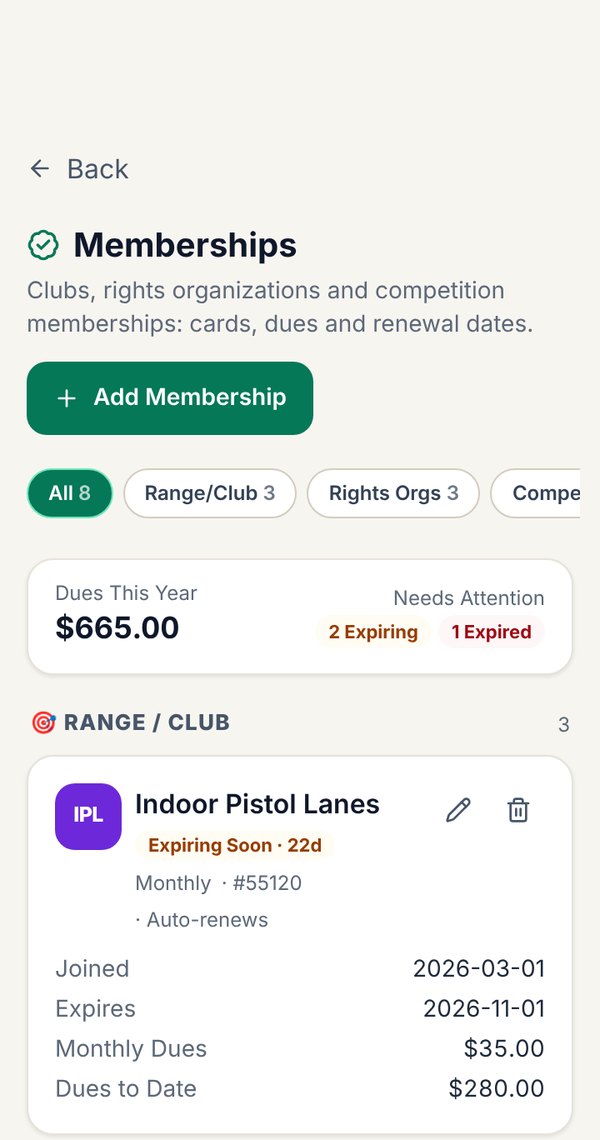
The Memberships List
Filter chips (All, Range/Club, Rights Orgs, Competition) narrow the list. A summary card shows your Dues This Year and anything that Needs Attention. Expiring Soon and Expired badges flag renewals.
Join Gun Owners of America
At the bottom of Memberships you'll find a Join Gun Owners of America card that opens GOA's sign-up page. Some links are affiliates.
Wishlist
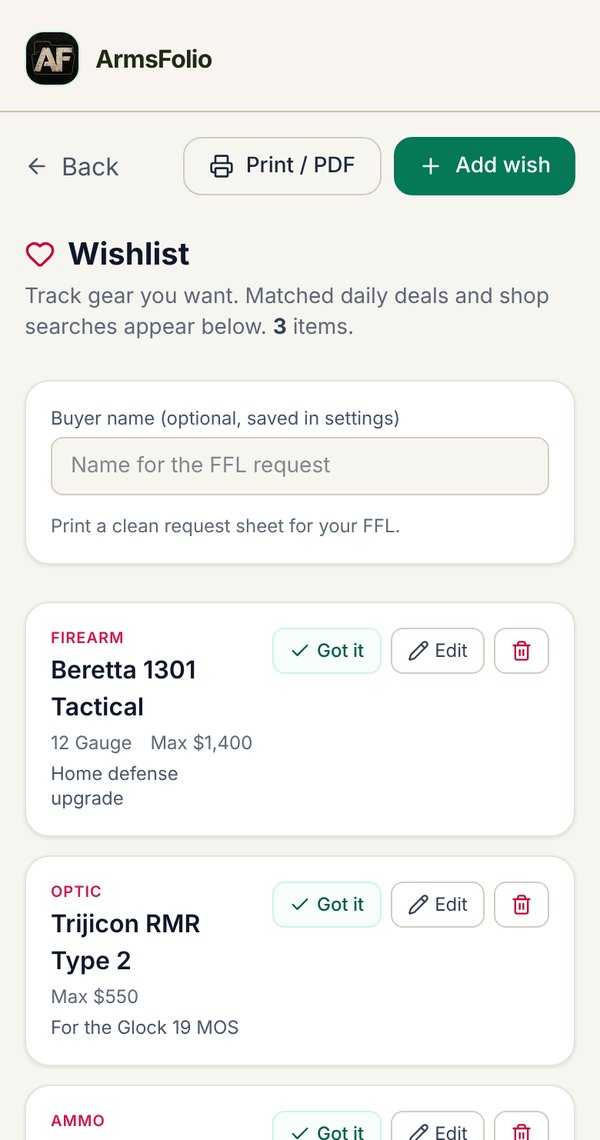
The Wishlist tracks gear you want: firearms, optics, suppressors, accessories or ammo. Tap Add wish and enter the type, brand, model, caliber, a max budget and notes (color, configuration, where you saw it).
- Deals Matching Your Wishlist appear below your list, plus handy shop searches. Some links are affiliates.
- When you buy something, tap Got it. ArmsFolio offers to add it to your vault with the details already filled in, or you can just remove it from the Wishlist.
- FFL Wishlist Request: type an optional buyer name, then tap Print / PDF for a clean request sheet to hand to your dealer. It's a private request list only, not a purchase order or a legal document.
FFL Dealer Vault
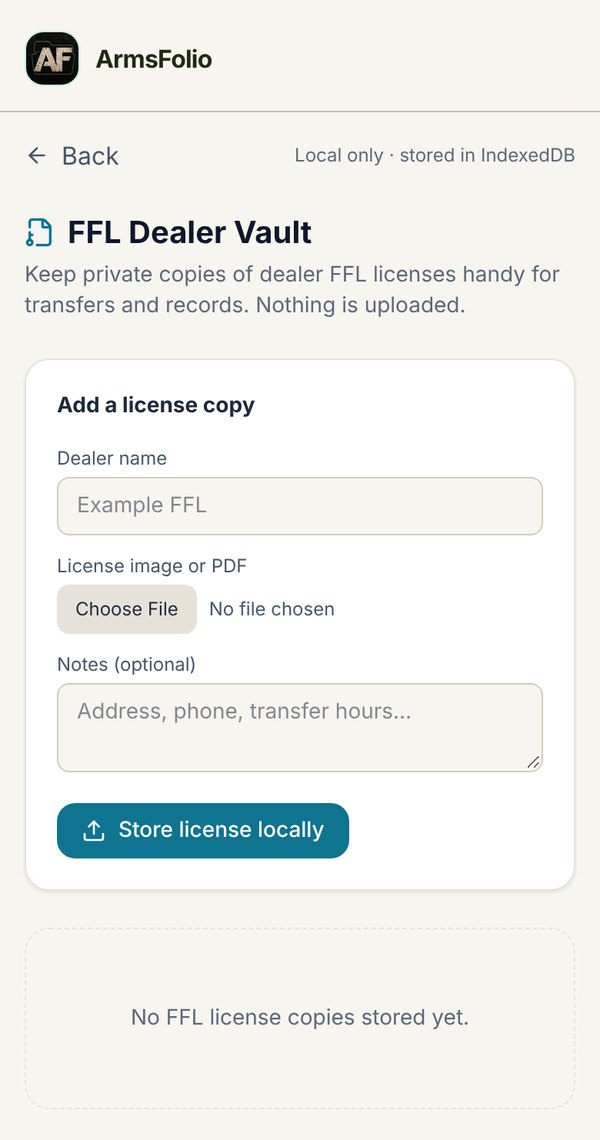
Tools › FFL Dealer Vault keeps copies of the FFL licenses for the dealers you use, so you have them at hand for transfers. Under Add a license copy, enter the Dealer name, choose a License image or PDF, add optional notes (address, phone, transfer hours) and tap Store license locally.
Each saved license has View, Download and Share buttons, plus delete. These files stay on your device.
Dispositions
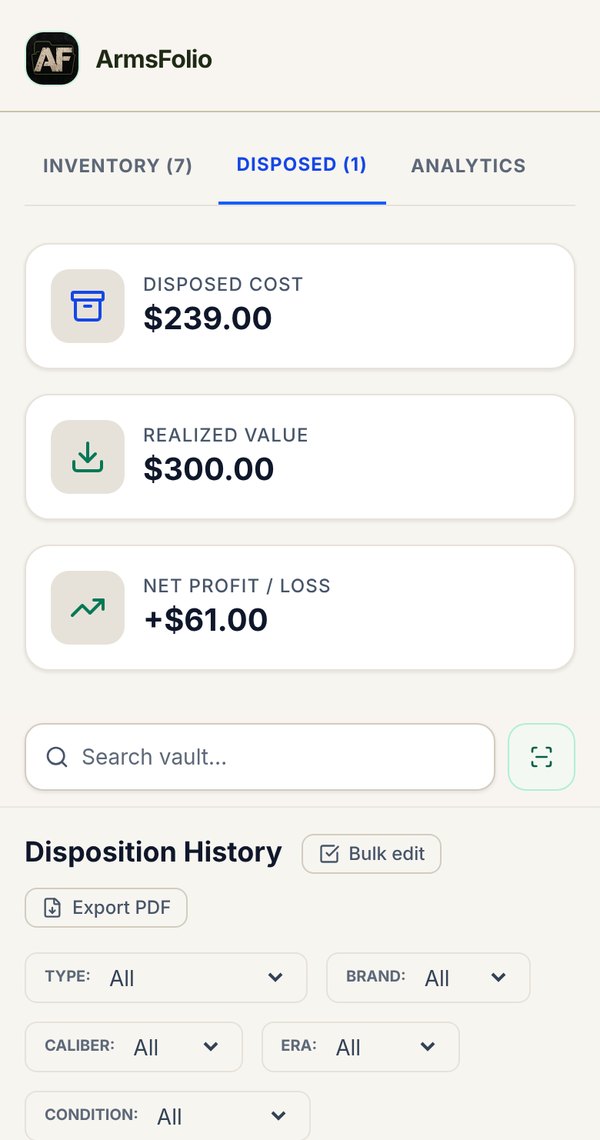
When you sell, trade, gift or transfer an item, record it as a disposition rather than deleting it. Your history, profit and loss, and paperwork stay in ArmsFolio.
Recording a Disposition
Open the item and tap Dispose. In Record Disposition / Transfer, fill in:
- Disposition Date and Sale / transfer price.
- Buyer / recipient, plus optional FFL name and FFL number if a dealer handled the transfer.
- Transfer notes (payment method, location, private notes).
- A paperwork checklist: Bill of sale, Transfer / receipt, Recipient ID noted, FFL transfer done and Other docs on file.
This is your private record only. It is not a Form 4473 and not legal advice.
The Dispositions Tab
Disposed items move to the Disposed tab (phone) or Dispositions tab (computer). Its totals show Disposed Cost, Realized Value and Net Profit / Loss. You can search, filter, sort, bulk edit and export it just like the vault.
On a disposed item's page you can Print sales agreement, a simple bill-of-sale style form with seller, buyer, item, serial, price, date, location and signature lines. It is not legal advice and not a substitute for required transfer paperwork. If an item comes back, use Restore to Active Vault.
Analytics
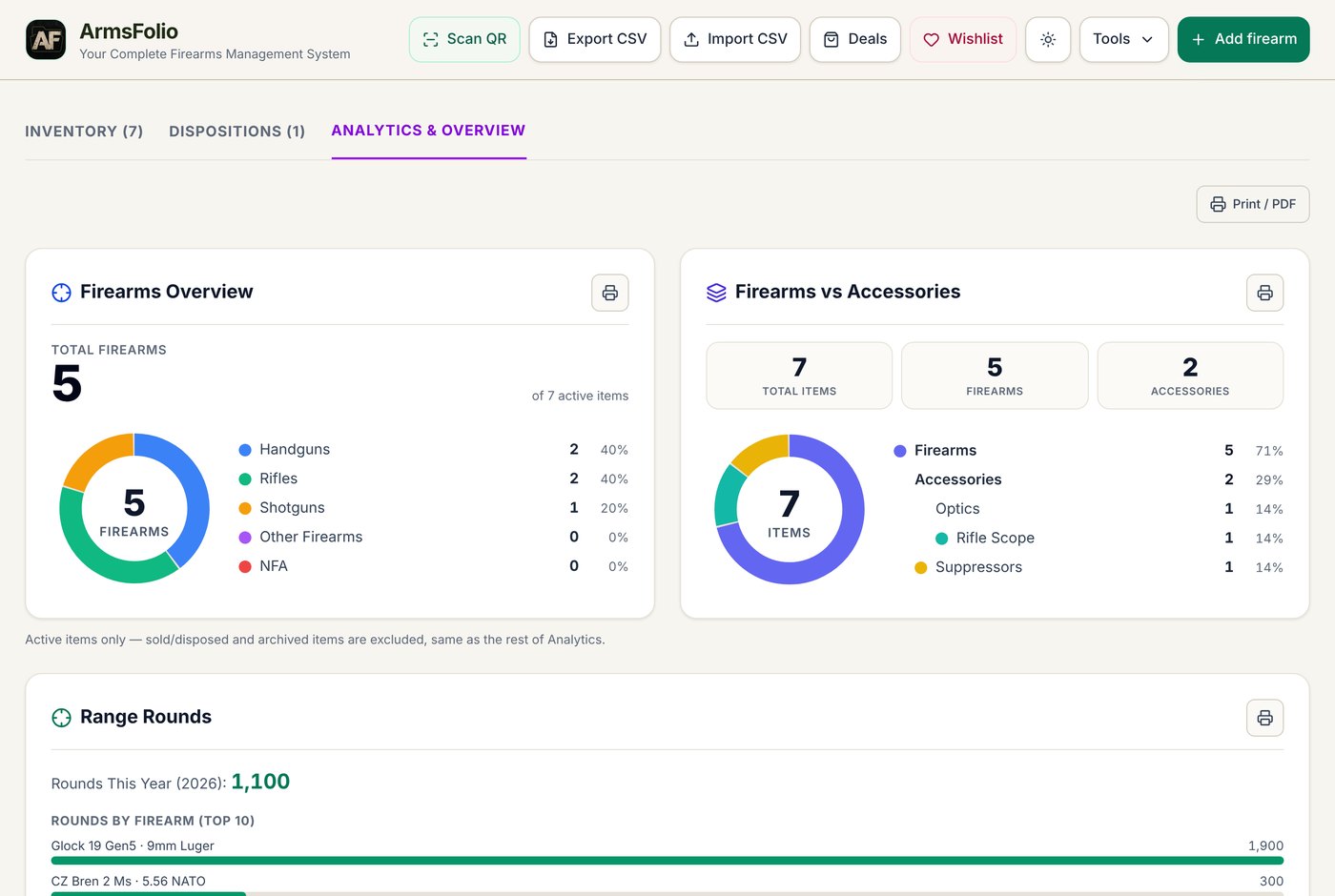
The Analytics tab (called Analytics & Overview on a computer) turns your vault into charts and tables. It covers active items only; sold and archived items are left out.
- Firearms Overview: totals of handguns, rifles, shotguns, other firearms and NFA items.
- Firearms vs Accessories: firearms compared with optics, suppressors and other accessories.
- Range Rounds: rounds fired this year and your top 10 firearms by rounds, each with its caliber.
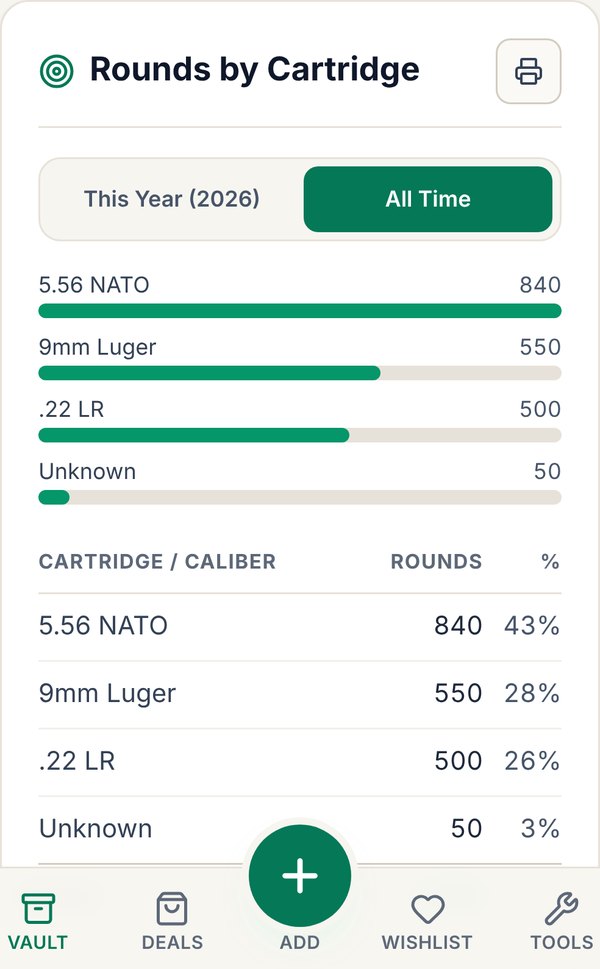
- Rounds by Cartridge: logged range rounds for each caliber, with a This Year / All Time switch, a bar chart and a table with share and total. Starting round counts aren't included, only logged trips.
- Maintenance Reminders, Collection Breakdown, Acquisitions by Year, Top Brands, Top Models and Cartridges & Calibers.
- Top Firearms by Value, Top Optics by Value and Top Accessories by Value.
- A deals strip for your vault. Some links are affiliates.
Printing Analytics
Each card has its own small printer button for printing or saving just that card as a PDF. Print / PDF at the top prints every Analytics report at once. When you print Rounds by Cartridge on its own, it uses the period you picked; Print All includes both.
Reports
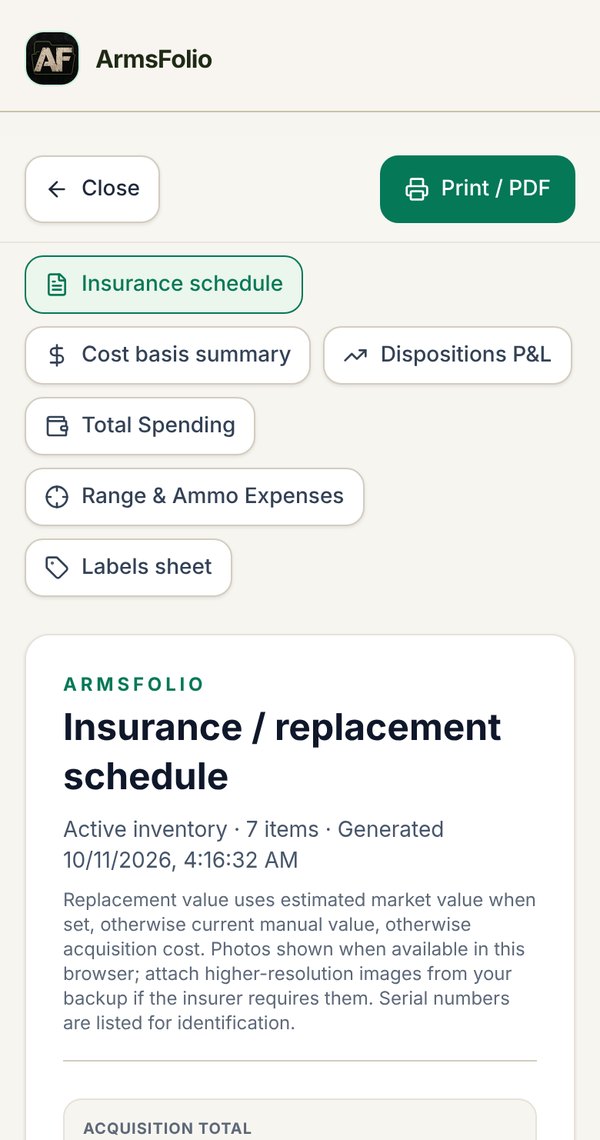
Tools › Reports creates printable reports. Pick a report at the top, then tap Print / PDF.
- Insurance schedule: a replacement-value schedule of your active items, with photos, serial numbers, SKU, inventory numbers, acquisition and current values, and totals. Replacement value uses your estimated market value when set, otherwise current value, otherwise cost.
- Cost basis summary: what you paid compared with what your collection is worth now.
- Dispositions P&L: your sales and transfers for a chosen year or all time, with cost basis, realized value and net profit or loss.
- Total Spending: everything you've spent (see below).
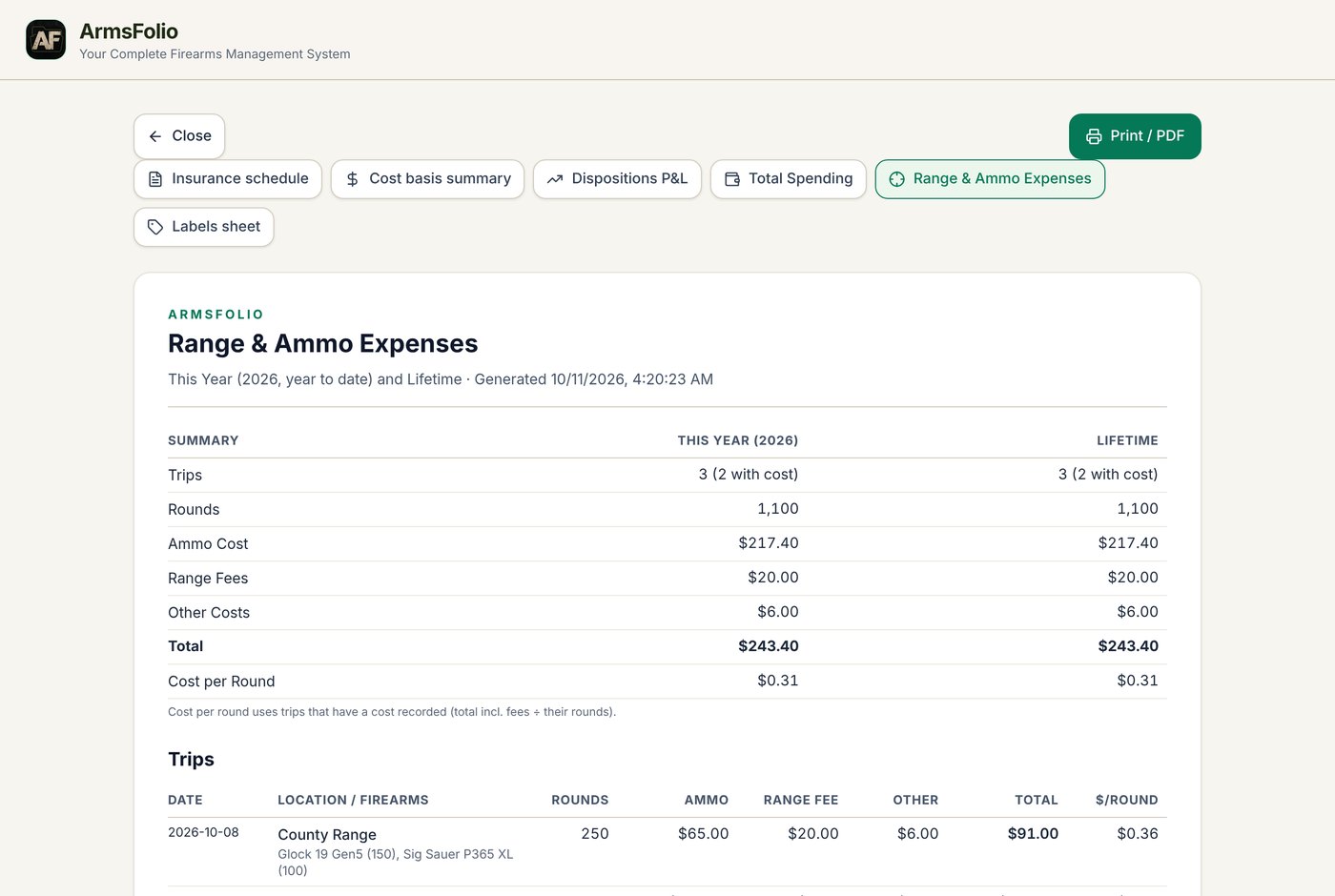
- Range & Ammo Expenses: what shooting costs you (see below).
- Labels sheet: a printable sheet of simple labels with inventory ID, brand, model and serial.
Total Spending
A grand total plus Spending by Category (Firearms, Optics, Suppressors, Accessories & Other, Maintenance & Parts, Memberships & Dues, Range Trips, Reloading and Ammo Inventory) with entries, amount and share, followed by an Itemized Spending list. It counts the purchase price of every item you've ever recorded, active or disposed, plus maintenance costs, membership dues, range-trip costs, reloading components and the ammo you still have on hand (at its Ammo cost). Items without a purchase price are counted and flagged. Handloads and rounds already shot are never counted twice.
Range & Ammo Expenses
Compares This Year with Lifetime: trips, rounds, ammo cost, range fees, other costs, total and cost per round. Below that are a per-trip table and a By Firearm summary. Cost per round uses only the trips where you recorded a cost.
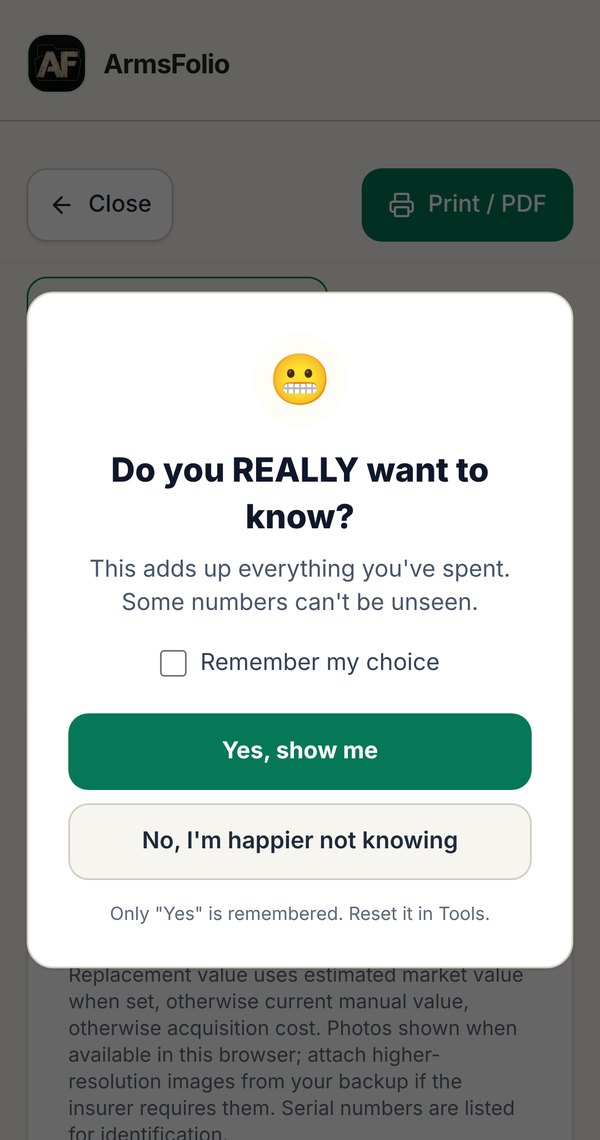
The "Do You REALLY Want to Know?" Pop-Up
Before either spending report opens, ArmsFolio asks, with a wink: Do you REALLY want to know? Choose Yes, show me or No, I'm happier not knowing. Tick Remember my choice to skip the question next time. Only a "Yes" is remembered; "No" always asks again. To bring the question back, go to Tools › Settings › Spending Reports Pop-Up and tap Reset.
Printing Reports: Landscape and PDF
Tabular reports (the vault export, insurance schedule, P&L and spending reports) are laid out for US Letter landscape. They have fixed column widths, a header row on every page and page numbers. On Android, the print dialog opens in landscape for these reports. In a browser, check that Layout is set to Landscape in the print window.
To keep a digital copy, choose Save as PDF as the printer. On Android, choose Save as PDF from the printer list at the top of the print screen.
Back to top ↑QR Tags
QR tags let you label a case, safe slot or bag and jump straight to the item in ArmsFolio by scanning it.
Printing QR Tags
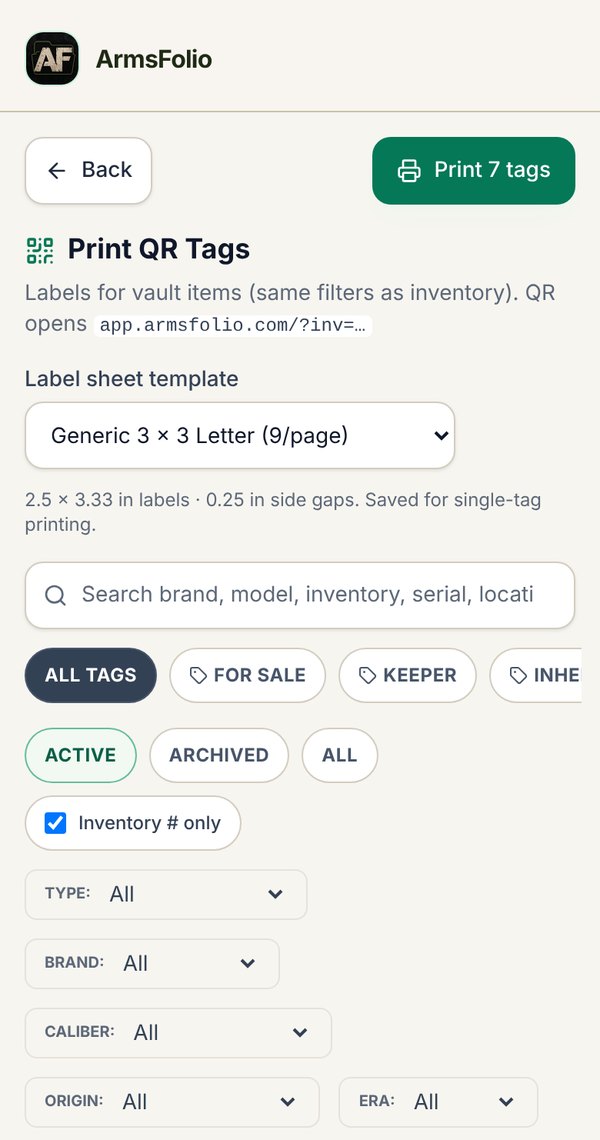
Open Tools › Print QR Tags. Choose a Label sheet template:
- Generic 3 × 3 Letter (9 per page)
- Avery 5160 (30 per page)
- Avery 5163 (10 per page)
- Avery 5164 (6 per page)
- Avery 22805 (24 per page)
- 2 × 2 Product Squares (20 per page)
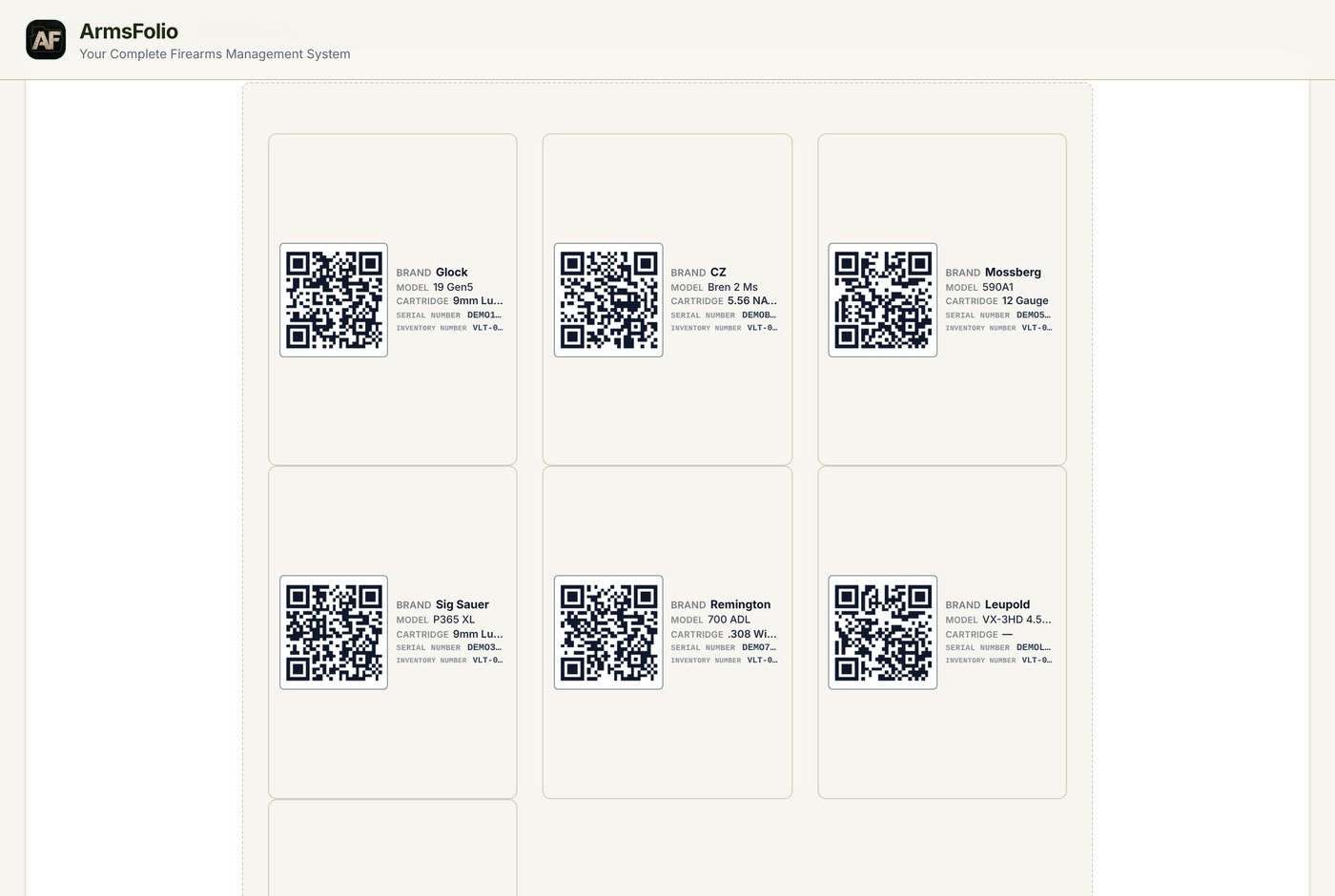
Use the same tag chips, status chips, search and filters as the vault to choose which items to print. Inventory # only limits the sheet to items that have an inventory number. Each tag shows the QR code with the brand, model, cartridge, serial number and inventory number. Tap Print (number) tags to print.
To print a single tag, open the item and tap Print tag next to its QR code. It uses the template you chose last.
Scanning QR Tags
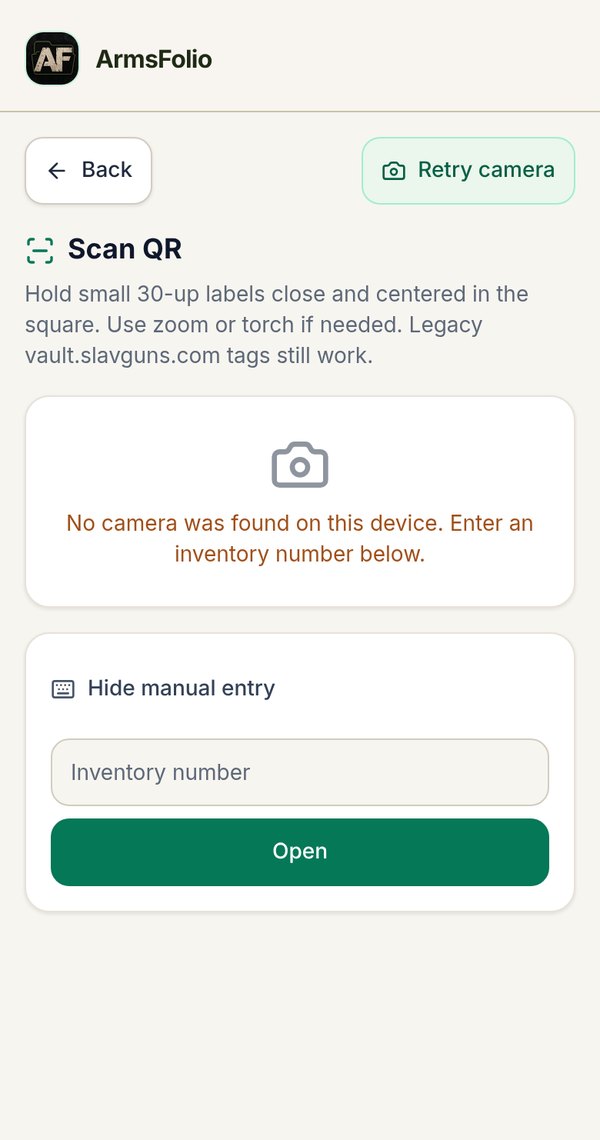
Tap Scan QR (Tools, the vault's Scan button, or the header on a computer). Allow camera access when asked, then hold the tag centered in the square. Small labels work best held close; use zoom or the torch if needed. ArmsFolio opens the matching item right away.
If there's no camera, or you'd rather type, tap Enter inventory # manually, type the number and tap Open.
App Links: Scanning With Your Phone's Camera
Each QR code holds a regular web link (app.armsfolio.com with the inventory number). That means you can also scan a tag with your phone's normal camera app:
- On Android with the ArmsFolio app installed, the link opens the item in the app.
- Anywhere else, it opens the web app in your browser. The item opens if that browser has your vault.
Older tags printed with the vault.slavguns.com address still work.
Back to top ↑Range Roulette
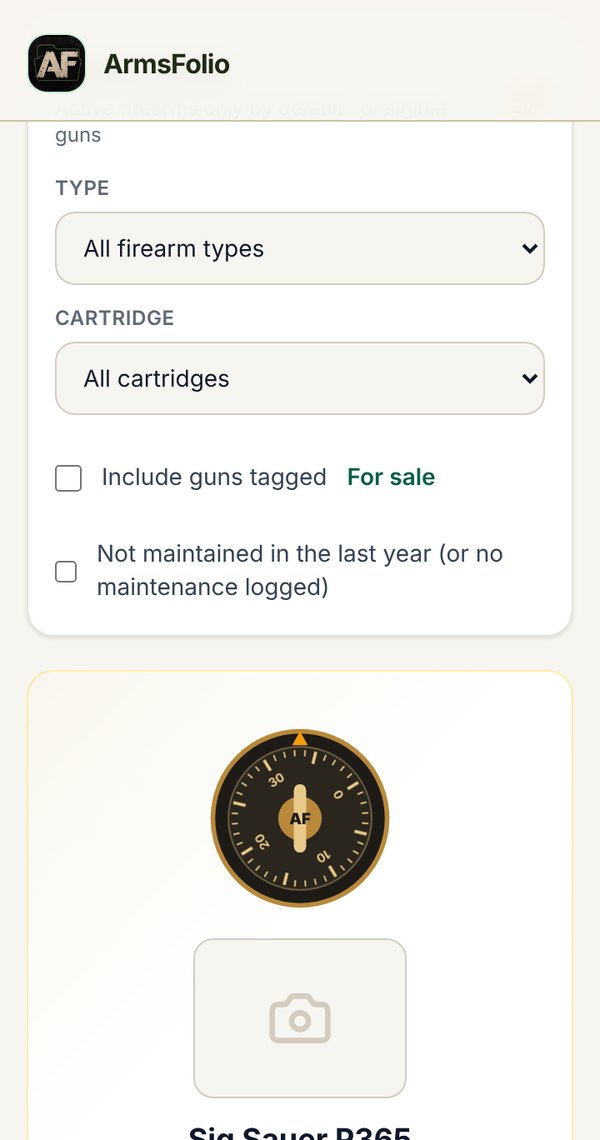
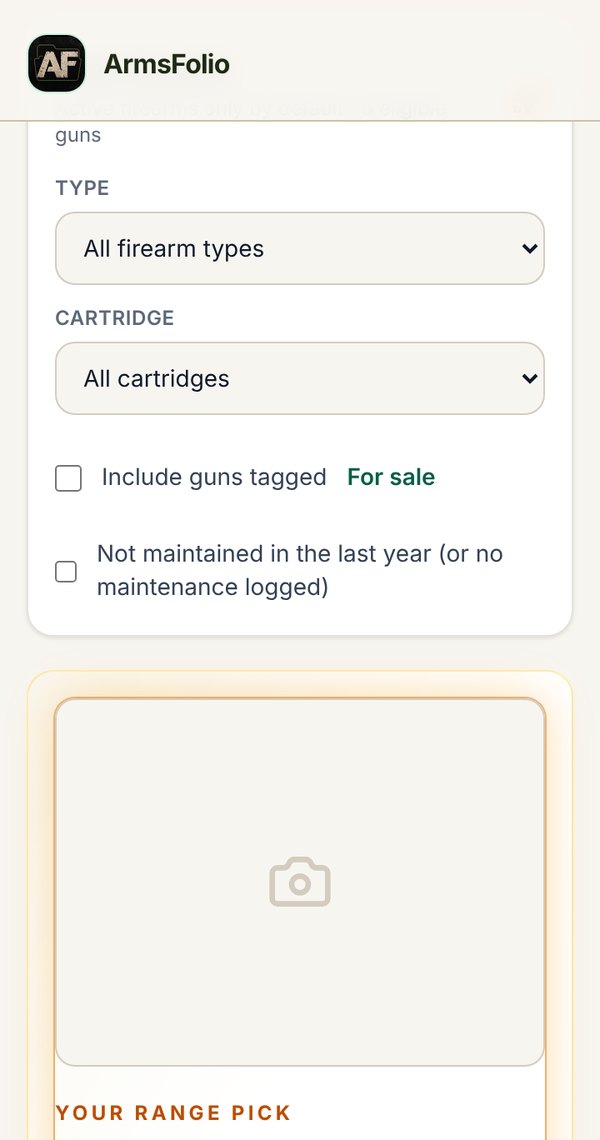
Can't decide what to shoot? Tools › Range Roulette lets your collection pick for you.
- Under Tune the pool, narrow the choices by Type and Cartridge. Choose whether to Include guns tagged For Sale, or only firearms Not maintained in the last year. Tap tags under Exclude tags to leave those guns out.
- Tap Pick a range gun. A safe dial spins through your guns, slows down and clicks open to reveal your pick.
- Tap Open detail to go to that firearm, or Spin again.
Only active firearms are in the draw; optics and accessories are left out. Nothing is changed or saved when you spin. Use the Sound button to mute the dial clicks. If your device is set to reduce motion, the pick simply fades in.
Deals
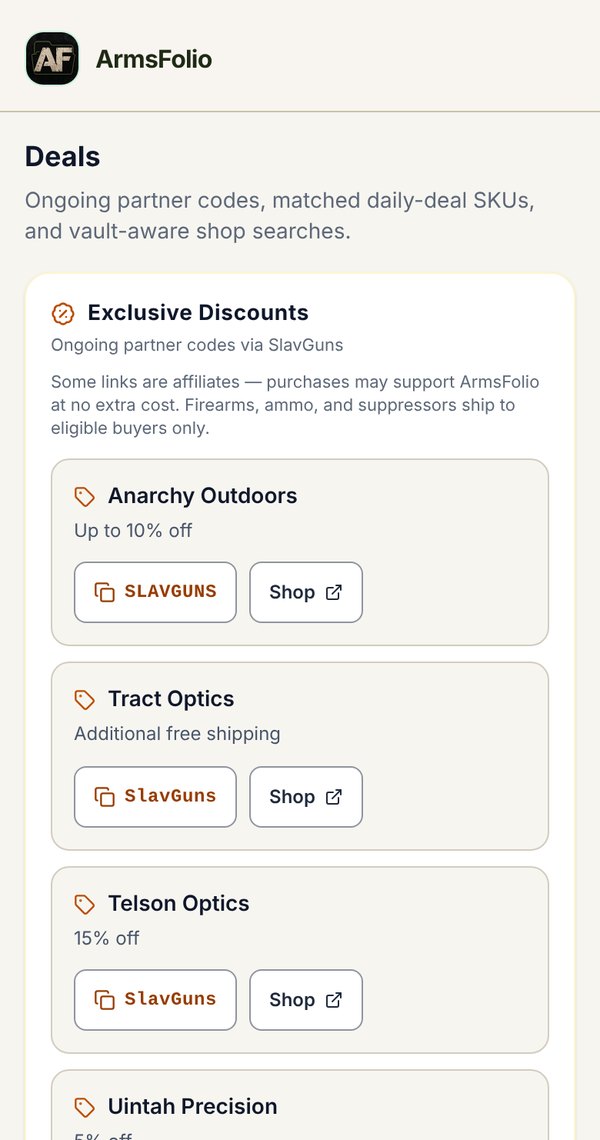
The Deals tab (or Deals in the header on a computer) collects ways to save on gear. Some links are affiliates.
- Exclusive Discounts: ongoing partner promo codes. Tap the code to copy it, then Shop.
- Daily Deals for Your Vault: current SlavGuns daily deals, matched to the calibers, brands and types in your vault, with sale price, regular price and store.
- Shop searches: quick searches for ammo in your calibers, magazines for your brands, and more.
- Earlier deals: opens the SlavGuns Gun Deals archive in your browser.
- At the bottom: Send Feedback, the Privacy Policy, Donate and Follow Us.
The daily deals refresh through the day and are saved for offline use.
Security
Passphrase Lock and Encryption
By default your vault is stored as plain data on your device, which is protected by your phone's own lock screen. For stronger protection, turn on encryption:
- Open Tools › Vault Security.
- Enter a New passphrase (at least 8 characters) and confirm it.
- Tap Enable encryption and confirm.
Your vault and photos are now encrypted on this device with AES-256-GCM. Each time ArmsFolio starts, it asks for your passphrase on the ArmsFolio locked screen.
On the Vault Security screen you can also:
- Lock now to lock immediately.
- Set Auto-lock after 5, 15, 30 or 60 minutes of inactivity, or Never.
- Change passphrase (you'll need the current one).
- Disable encryption to return to plain storage (also needs the current passphrase).
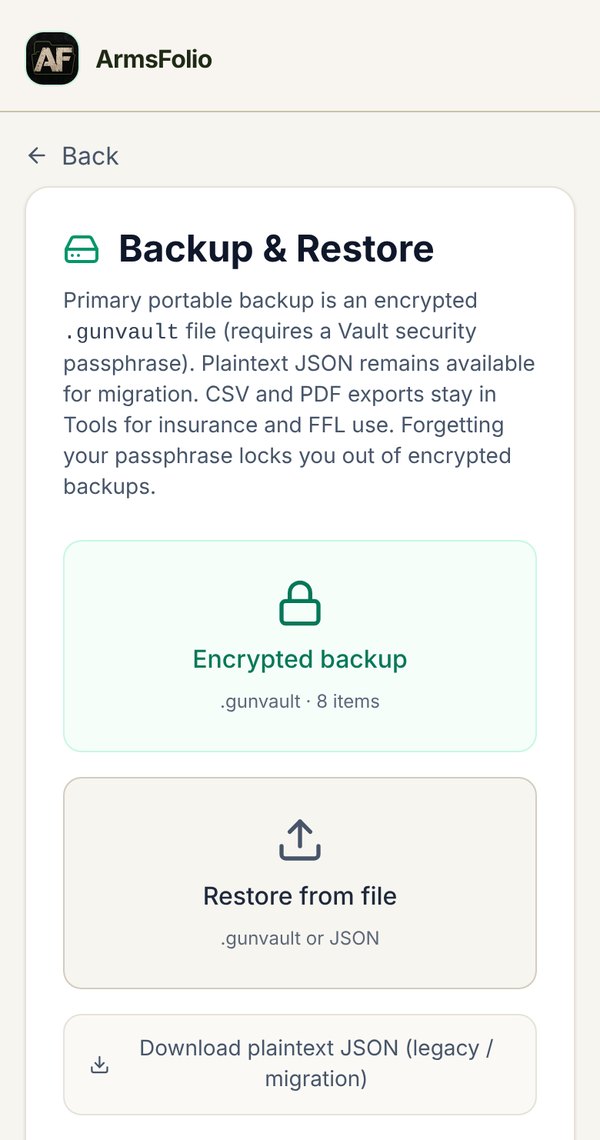
- Download an Encrypted backup (.gunvault file).
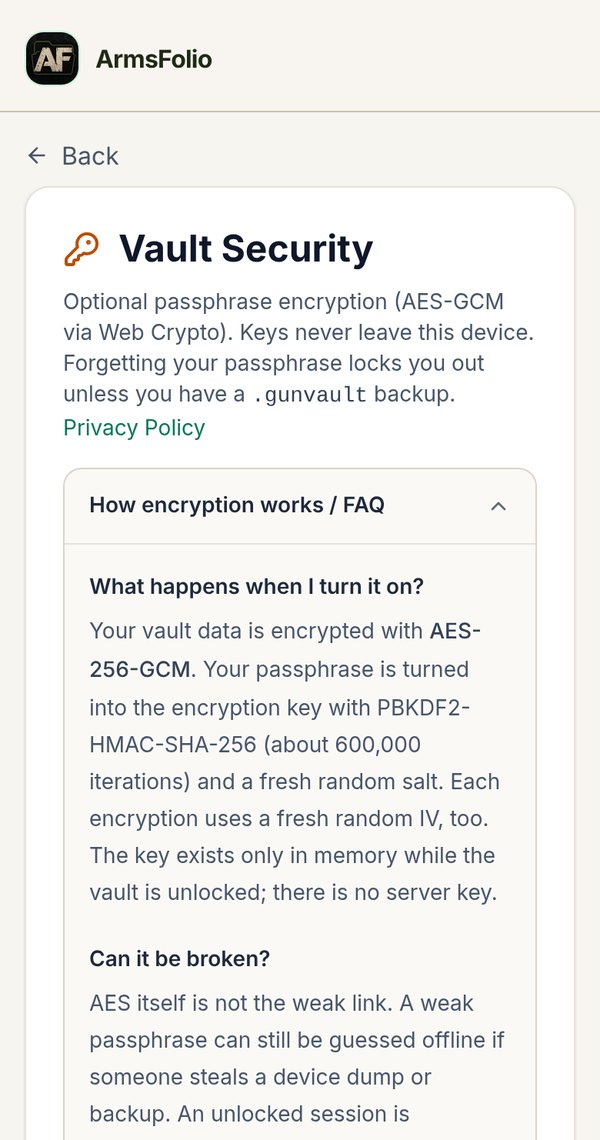
The How encryption works / FAQ section explains the details: your passphrase is turned into a key on your device with about 600,000 rounds of PBKDF2, and the key only exists in memory while the vault is unlocked. There is no server key.
CSV and PDF exports are not encrypted, because they're meant for your insurer or dealer. Store them carefully.
Recovery Kit (Vault+)
If you use Vault+, create a Recovery Kit from the Vault+ screen. It's a small text file with your account email, account ID, a hint you write yourself, and the steps to restore. It never contains your passphrase or keys. Print it or store it somewhere safe and separate from your devices.
What Zero-Knowledge Means
With Vault+, your vault, photos and documents are encrypted on your device before anything is uploaded. ArmsFolio's servers only ever store scrambled data. We can't read your serial numbers, photos or notes, and we can't reset or recover your cloud passphrase. Your passphrase never leaves your device; it's turned into two separate keys, one that encrypts your data and one that only proves who you are.
Back to top ↑Backup & Restore and CSV
Your vault lives on your device, so backups are your safety net. Make one regularly, and always before changing phones, clearing your browser or uninstalling.
Backups
Open Tools › Backup & Restore:
- Encrypted backup (.gunvault): the recommended backup. It needs Vault Security turned on and is protected by your passphrase.
- Download plaintext JSON: an unencrypted backup for moving between devices or older versions. Keep it private.
- Restore from file: pick a .gunvault or JSON file. ArmsFolio shows how many items and images are in it and asks before replacing the vault on this device. For a .gunvault file, you'll enter its passphrase.
Auto-Backup Snapshots
Every time your vault changes, ArmsFolio quietly saves a snapshot on the device, keeping the last five. If something goes wrong, tap Restore next to a snapshot. Snapshots hold your item details; photos stay where they are.
Moving to a New Phone or Computer
- On the old device, make an Encrypted backup (or a JSON backup).
- Move the file to the new device (email it to yourself, use a cable or cloud drive).
- On the new device, open ArmsFolio, go to Tools › Backup & Restore › Restore from file and choose the file.
Vault+ members can simply sign in on the new device instead.
CSV Import and Export
CSV files open in Excel, Google Sheets or Numbers, so they're handy for bulk entry and sharing a list with your insurer.
- Export CSV (Tools, or the header on a computer) downloads your vault as a spreadsheet.
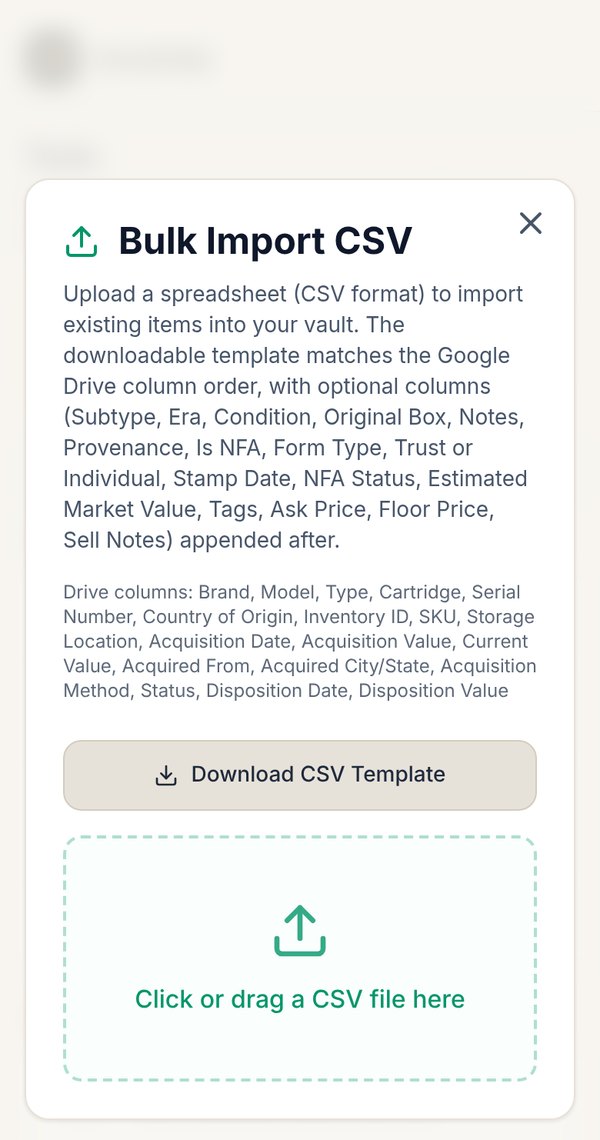
- Import CSV opens Bulk Import CSV. Tap Download CSV Template for a ready-made file with the right columns and a sample row, fill it in, then drag the file in or tap to choose it. Columns ArmsFolio doesn't recognize are listed and ignored, and you'll be warned about duplicate serial numbers.
The columns are: Brand, Model, Type, Cartridge, Serial Number, Country of Origin, Inventory ID, SKU, Storage Location, Acquisition Date, Acquisition Value, Current Value, Acquired From, Acquired City/State, Acquisition Method, Status, Disposition Date and Disposition Value, followed by the optional Subtype, Era, Condition, Original Box, Notes, Provenance, Is NFA, Form Type, Trust or Individual, Stamp Date, NFA Status, Estimated Market Value, Tags, Ask Price, Floor Price and Sell Notes.
Vault+
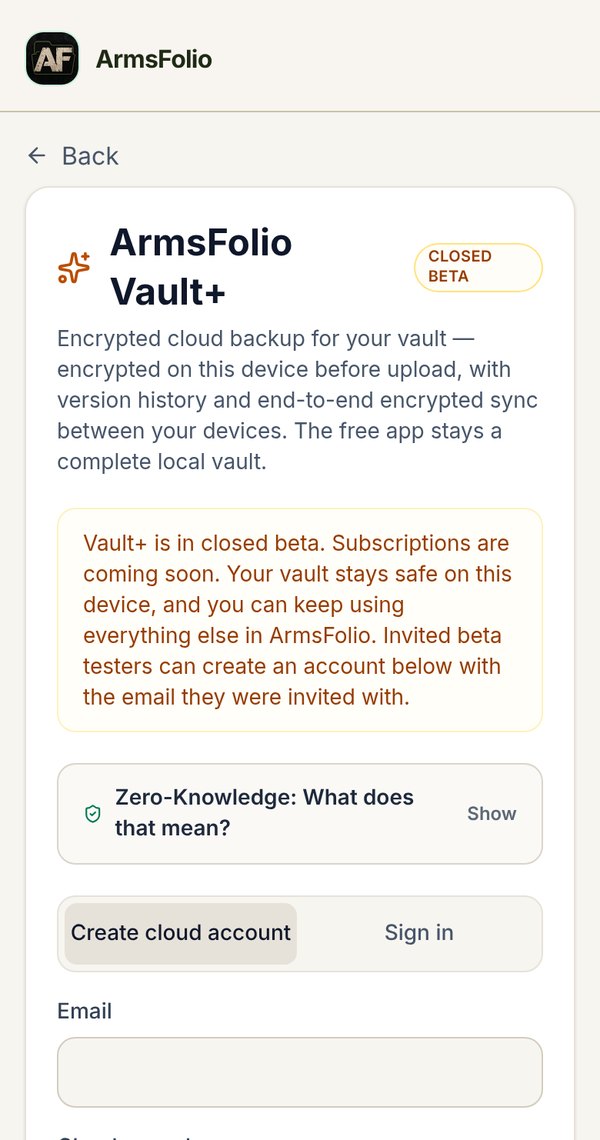
ArmsFolio Vault+ is an optional add-on for encrypted cloud backup and sync. The free app stays a complete local vault, and nothing changes for you if you never use Vault+.
What Vault+ Does
- Encrypted cloud backup: your vault, photos and documents are encrypted on your device before upload (zero-knowledge).
- Version history: the last 30 versions plus a daily snapshot for 90 days.
- Sync across devices: your phone, tablet and the web app stay in step.
Open it from the highlighted ArmsFolio Vault+ card at the top of the Tools menu.
Creating an Account (Beta Testers)
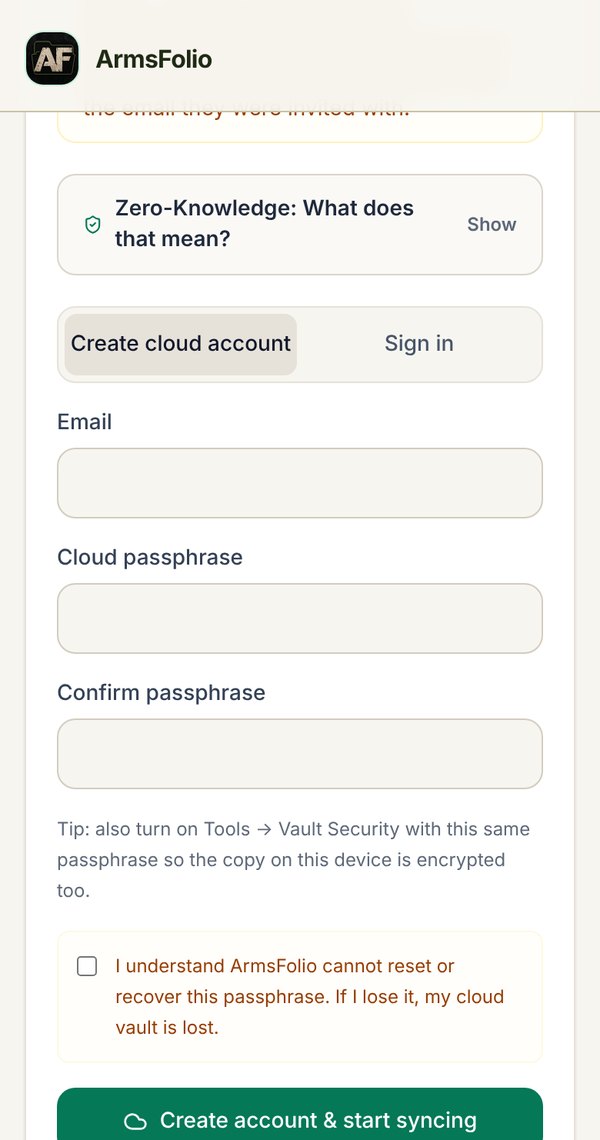
- Tap Create cloud account.
- Enter your Email and a Cloud passphrase (at least 10 characters), and confirm it. If Vault Security is on, use the same passphrase so you only have one to remember.
- Tick the box confirming you understand ArmsFolio can't reset or recover this passphrase.
- Tap Create account & start syncing. Deriving your keys takes a second or two on purpose, which makes passphrase guessing slow.
Syncing and Devices
Once you're signed in, ArmsFolio syncs automatically a few seconds after each change, when you open the app, and every few minutes while it's open. You can tap Sync now at any time. The Sync Status card shows your account, when you last synced, the cloud revision and how much storage you're using. During a sync you'll see the progress (encrypting, uploading photos, uploading the vault) with a Cancel button. On Android, a sync keeps running with the screen off and shows a notification; if it gets interrupted, it picks up again when you're back online.
To add another device, open ArmsFolio there, go to Vault+, tap Sign in and use the same email and cloud passphrase. If that device already has a vault and the cloud does too, ArmsFolio asks which one should win: Use the cloud copy or Upload this device's vault. Nothing is lost either way; the other copy is kept under Revisions for 90 days.
The Devices card lists every device signed in to your account, with its label (for example "Android app" or "Web · Chrome on Windows"), platform and when it last synced. This Device marks the one you're holding. Tap Sign Out next to any device to sign it out remotely, for example a lost phone. It stops syncing until someone signs in again with your email and cloud passphrase; the vault already on that device isn't erased. The server only knows these labels and times, never your vault contents.
To stop syncing on the device you're using, use This Device › Sign Out of This Device (or Sign Out next to it in Devices). The vault stays on the device and the cloud copy isn't touched.
Revisions & Restore
Revisions & Restore lists earlier versions of your cloud vault. Pick one to restore. It replaces the vault on this device and becomes the newest cloud version; the version you had stays in the list, so a restore can always be undone.
Changing or Forgetting Your Cloud Passphrase
- Change Cloud Passphrase: enter your current passphrase and a new one. Your other devices are signed out and need the new passphrase.
- Forgot your cloud passphrase? Your cloud data can't be decrypted without it. If you still have a signed-in device, you can reset: the old cloud copy is erased, you choose a new passphrase, and the vault on your device is uploaded again. You type RESET to confirm.
Deleting Your Cloud Account
At the bottom of the Vault+ screen you can permanently delete your cloud account and every revision, photo and document in it. You'll confirm with your passphrase and by typing DELETE. The vault on your devices is not affected.
Back to top ↑Tools Menu and Settings
The Tools Menu
Tools groups everything by topic. Type in Search tools… to find something fast.
- ArmsFolio Vault+ (top, with the Closed Beta badge).
- Inventory: Ammo Inventory, Reloading, Wishlist, FFL Dealer Vault.
- Range: Range Log, Range Roulette, Memberships.
- Labels & Scanning: Scan QR, Print QR Tags.
- Reports & Reminders: Reports, Analytics, Reminders, Export PDF.
- Vault & Account: Vault Security, Backup & Restore, Import CSV, Export CSV.
- Settings.
On a computer, Tools opens as a three-column menu. Items already in the header (Wishlist, Scan QR, Analytics, CSV and Export PDF) aren't repeated there.
Settings
Tools › Settings holds the preferences for this device:
- Appearance: Light, Dark, Auto or Scheduled.
- Features: switch Reloading Inventory on or off.
- Spending: Spending Reports Pop-Up › Reset to see "Do you REALLY want to know?" again.
- Data: shortcuts to Vault Security and Backup & Restore.
The app version is shown at the bottom of Vault Security.
Troubleshooting
My vault is empty after clearing my browser (or reinstalling). The vault lives in the app or browser storage on that device, so clearing it erases the vault. Restore your latest .gunvault or JSON file from Tools › Backup & Restore, or sign in to Vault+ if you're a beta tester. If you only cleared part of the data, try Auto-backup snapshots first.
I'm locked out and forgot my Vault Security passphrase. The passphrase can't be recovered or bypassed. Restore a backup you made before (a JSON backup, or a .gunvault file whose passphrase you remember). This is why a written-down passphrase and a recent backup matter.
The camera won't start when scanning a QR tag. Allow camera access for ArmsFolio (Android Settings › Apps › ArmsFolio › Permissions) or for app.armsfolio.com in your browser's site settings, then tap Retry camera. You can always tap Enter inventory # manually instead.
A QR tag opens my browser instead of the app. Make sure the ArmsFolio app is installed and up to date. On Android, check Settings › Apps › ArmsFolio › Open by default and allow it to open supported links. In the browser, the item still opens if that browser holds your vault.
"No firearm found for inventory …" The tag's inventory number doesn't match any item on this device. Check the item's Inventory ID, or reprint the tag.
My printed report is in portrait or columns are cut off. In the print window, set Layout to Landscape and the paper to US Letter, and turn off "Fit to page" options that shrink content oddly. Then print or save as PDF again.
A photo is sideways. Open the item, tap Edit, and use the rotate buttons on the photo. You can also rotate photos on the item's page.
Deals aren't showing. Deals need an internet connection the first time. If nothing matches today, you'll see a link to all deals instead. Check your connection and reopen the tab later.
Tags I added in the CSV don't appear. Check the column is named exactly Tags, and separate several tags with semicolons. Re-import the file.
My round count looks too high or too low. Lifetime Rounds include the Starting Round Count you entered. Edit or delete range trips in Tools › Range Log to correct mistakes. Rounds by Cartridge in Analytics counts logged trips only.
Vault+ says it's in closed beta, or uploads are off. Vault+ isn't open to the public yet. If you were invited, sign in with the exact email you were invited with. Nothing is charged and your local vault is safe.
A Vault+ sync says "Paused — will resume". The sync was interrupted (often by going offline or switching apps). It continues on its own when you're back. You can also tap Sync now.
Back to top ↑FAQ
Do I need an account? No. ArmsFolio works fully without an account. An account is only needed for the optional Vault+ cloud backup.
Does ArmsFolio upload my inventory? No. Your vault stays on your device unless you choose to share or export something, or you sign in to Vault+, which uploads only encrypted data that we can't read.
Can I use ArmsFolio on an iPhone or iPad? Yes, through the web app at app.armsfolio.com. In Safari, tap Share › Add to Home Screen to install it. There's no separate App Store app yet.
Can I use it on more than one device? Yes. Without Vault+, move your vault with a backup file. With Vault+ (closed beta), your devices sync automatically.
Is ArmsFolio a legal record of my firearms? No. It's a personal record to help you stay organized and prepare insurance or transfer paperwork. It doesn't replace any required forms.
How do I mark a gun as a Favorite? Add the tag Favorite in the Tags column of a CSV file and import it. Favorites get a star and their own filter when you log range trips.
Why does ArmsFolio ask "Do you REALLY want to know?" It's a lighthearted check before you see your total spending. Choose Yes and tick Remember my choice to skip it, or reset it in Settings.
What happens to my data when I sell a gun? Use Dispose instead of deleting. The item moves to Dispositions with its full history, and your profit or loss is calculated.
How does ArmsFolio pay for itself? Some links in Deals, the deals strips, the wishlist and the GOA card are affiliate links. Some links are affiliates. You can also support the app through Donate on the Deals tab.
How do I contact you? Email feedback@armsfolio.com, or tap Send Feedback on the Deals tab. We read every note.
Back to top ↑Privacy Summary
- Local-first. Your inventory, photos, receipts, permits and notes are stored on your device. No account is required.
- Your choice to encrypt. On-device encryption is off until you turn on Vault Security, which then encrypts your vault on the device with a passphrase only you know.
- Minimal permissions. The camera is used only for taking photos and scanning QR tags. Photos are picked with the system photo picker, so ArmsFolio never sees your whole library.
- Deals without your data. The deals strip sends only search terms built from brand, model, caliber and type to our server, never serial numbers or other vault details. We don't sell your inventory data. Some links are affiliates.
- Zero-knowledge Vault+ (beta). If you use Vault+, everything is encrypted on your device before upload. The server sees your email, file sizes, timestamps and device labels, plus a sign-in check that can't reveal your passphrase, never the contents. We can't read your vault.
- You control sharing. Exports, PDFs, share sheets and emails only go where you send them.
Read the full Privacy Policy at https://www.armsfolio.com/privacy.
ArmsFolio is made by SlavGuns, a brand of 2A Media LLC. Questions or ideas: feedback@armsfolio.com. Web app: app.armsfolio.com. Release notes: armsfolio.com/changelog. © 2026 2A Media LLC.
Back to top ↑Still stuck? Email feedback@armsfolio.com. We read every note.
ArmsFolio is made by 2A Media LLC.